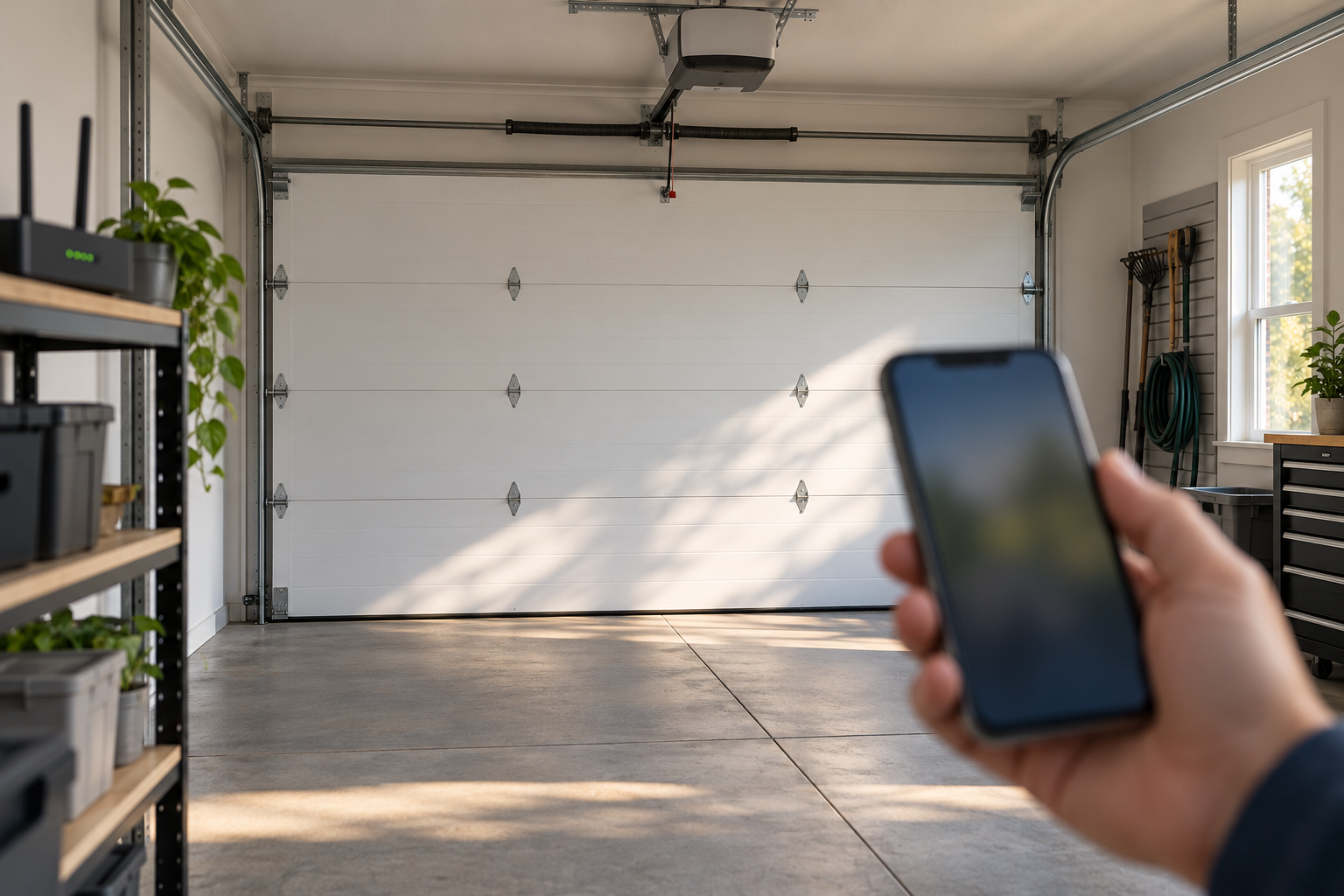
Connected controls link an app with compatible opener hardware.
Identify whether your door uses a built-in myQ opener or a compatible retrofit hub. Separate local door operation, the network connection and app access before changing settings or resetting equipment.
The most useful myQ setup question is not “Which button should I hold?” It is “What is the phone actually connecting to?” A Wi-Fi opener, an older opener with a separate hub, and a garage already registered to another household account can look similar from the driveway. They do not use the same setup route. Choosing the wrong one can leave you repeating pairing attempts—or erasing working controls—without addressing the real problem.
This guide follows the connection from the door to the phone. You will establish what hardware is present, prepare the network, verify the first connection, and then separate an offline device from an access-permission or movement fault. It is a setup and ownership guide, not a claim that we have laboratory-tested every myQ product. A connected garage should first be a garage that operates normally from its existing local controls.
Start at the opener, not in the app store
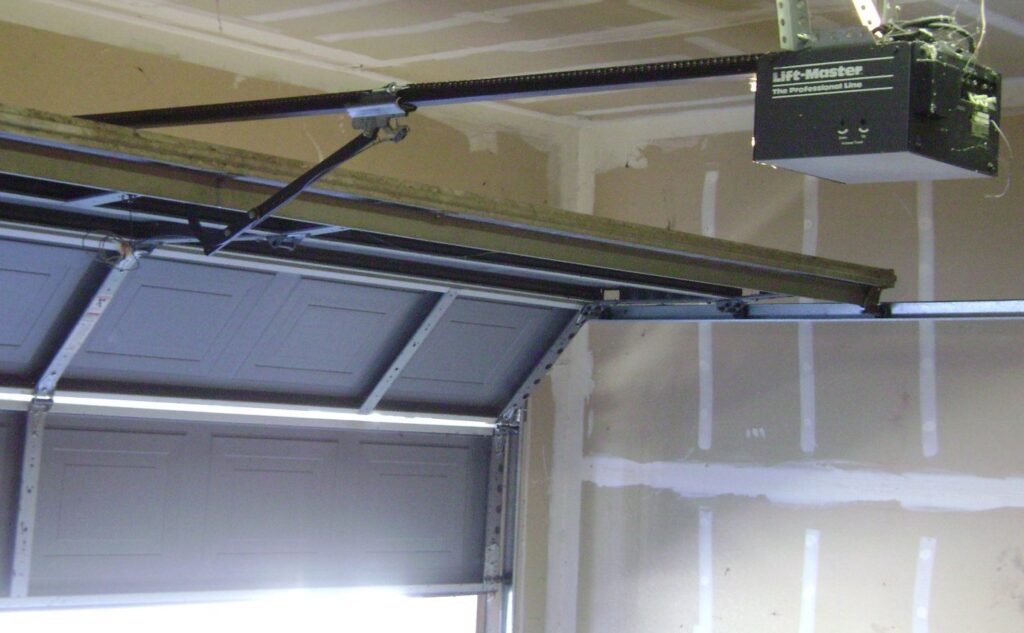
The distinction to resolve is built-in Wi-Fi versus a retrofit controller. The official myQ setup page provides a compatibility tool for choosing between them. A myQ logo alone is not sufficient evidence of built-in Wi-Fi. Equally, installing a hub is not an automatic requirement for every opener with the myQ name. Check the exact hardware before buying another box.
A retrofit controller adds its own connection and door-position information to a compatible existing opener. That creates additional places to check later: hub power, hub network connection, pairing with the opener, and the separate position sensor. With a Wi-Fi opener, those functions are arranged differently. Write down which configuration you have; that single note prevents many irrelevant troubleshooting steps.
Before adding anything, watch an ordinary local operating cycle only if the door is in safe condition and the doorway is clear. A door that hangs crooked, has a loose cable, binds, or makes a new severe noise needs attention before remote operation. App setup will not correct its mechanics. Keep a working authorized local entry method available while you configure the connected system.
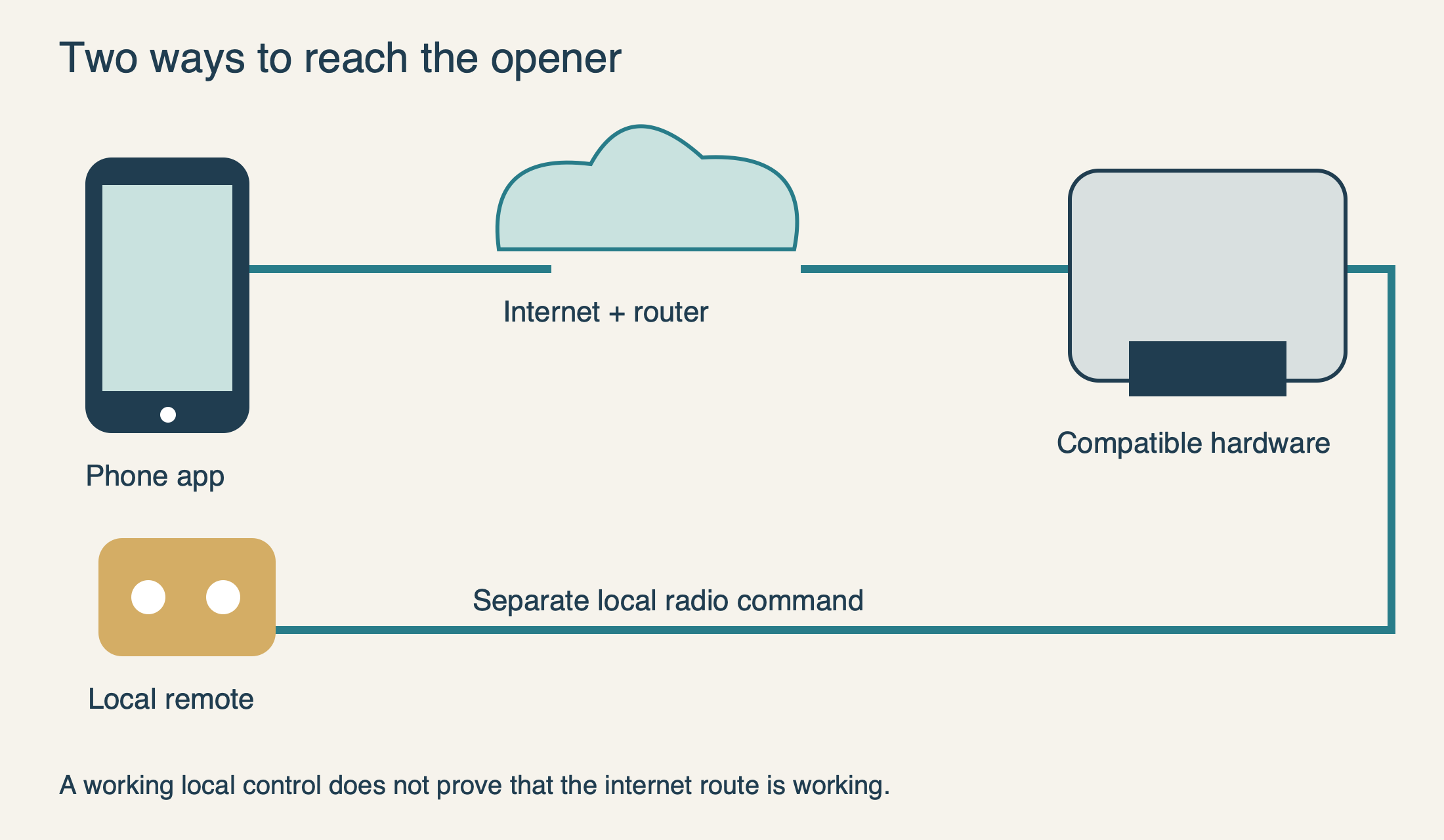 Select the diagram to view it at full size.
Prepare the network where the garage hardware lives
A phone browsing quickly in the kitchen does not establish that the opener has a reliable connection. Check the garage itself, with the door in the positions in which you normally use it. Treat the phone as an initial clue rather than a calibrated signal meter: its radio and location are not identical to the opener’s. If the connection is unreliable at the equipment, resolve coverage before repeating account setup.
The current myQ network guide calls for 2.4 GHz availability for most devices, a visible network name, DHCP, and compatible personal-network security. WPA3 support depends on compatible device firmware. A router advertising only 5 GHz is therefore not the right assumption for a typical garage controller. One network name, however, can serve both bands; it does not prove that 2.4 GHz is missing.
Write down the stage at which setup fails: the phone cannot find the hardware, the hardware cannot join Wi-Fi, or it joins the router but cannot finish connecting to the service. These are different observations. A screenshot of the exact message is more informative than “myQ does not work,” provided you hide email addresses, serial numbers and network credentials before sharing it publicly.
Connect the right device and verify the result in person
Use the official app download route rather than an advertisement promising universal garage access. In the manufacturer’s Wi-Fi opener setup flow, the app asks which kind of opener is installed and whether it is already connected to someone in the household. Bluetooth is used during discovery. Integrated-camera models have a separate setup route. Answer those questions from the hardware you identified, not from the picture that looks closest.
For phone-specific download and troubleshooting checks, use our myQ app for Android and Android Auto compatibility or myQ CarPlay and Siri compatibility. The steps below concern the garage hardware and network shared by those phone platforms.
An opener already used by a household member generally calls for shared access, not a second independent installation. If you have moved into a property and the device belongs to a previous account, use the manufacturer’s ownership-transfer/reset instructions for that device. Do not experiment with long button presses. Learning a remote, joining Wi-Fi and erasing stored access are different operations, even when a small number of physical buttons controls them.
Once the device appears in your account, give the door an unambiguous name. “Left, viewed from driveway” remains useful when another household member is standing outside; “my garage” does not distinguish two doors. While observing the actual doorway from a clear position, compare the displayed position with reality and test the permitted app operation. The first successful command is not the end of setup if the displayed door state is wrong.
For a retrofit Smart Garage Hub, the manufacturer specifies a separate door sensor high on the door with its TOP marking upward. Its hub-placement guidance also matters; do not tuck the hub behind shelving simply because power is available there. Use that hub’s installation instructions for its exact mounting arrangement. The audible warning before remote closing is intentional and cannot be disabled, according to the hub FAQ.
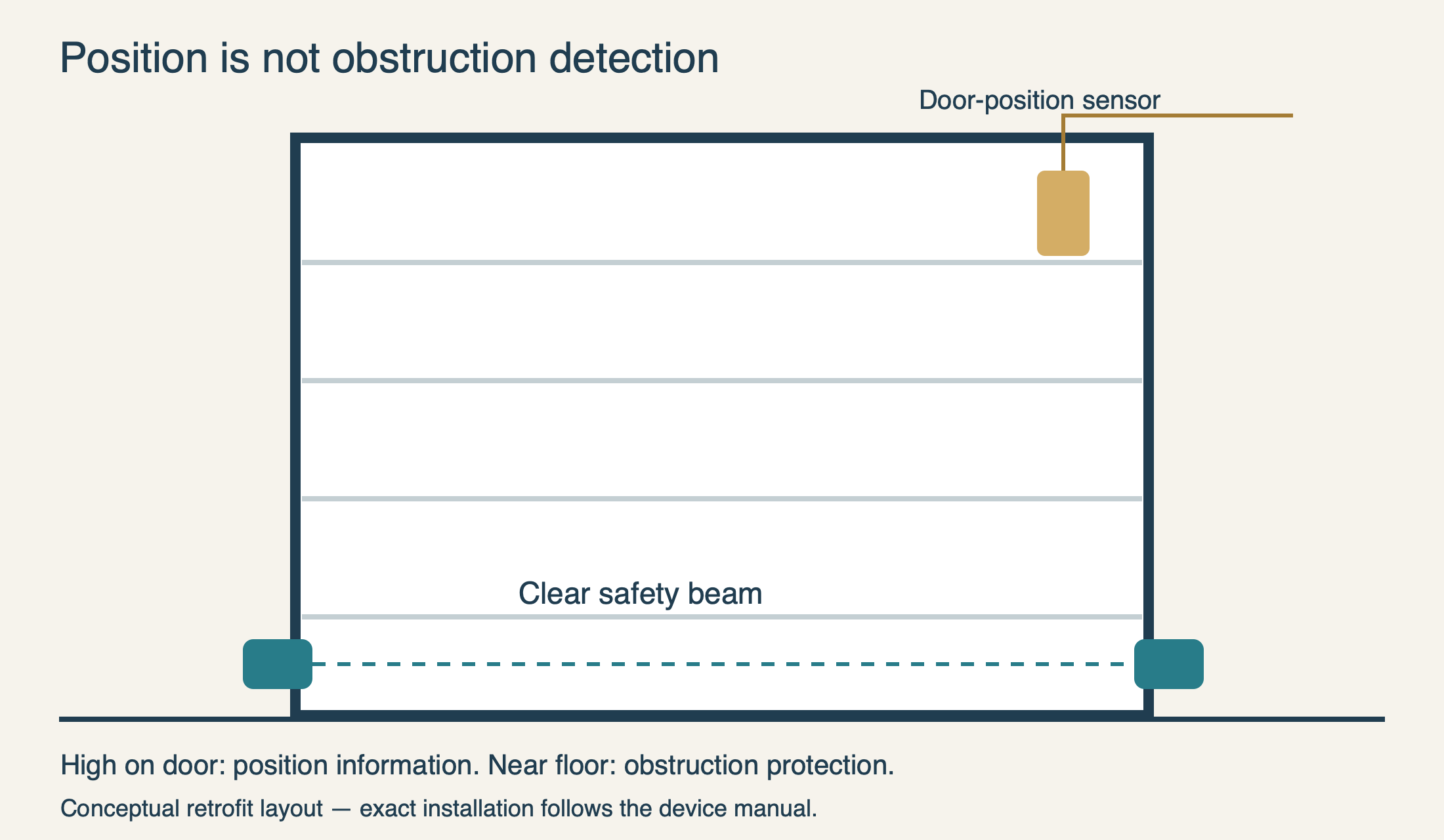 Select the diagram to view it at full size.
When something fails, isolate the failed connection
If the app reports offline but the wall control operates the door normally, begin with controller power and connectivity. Ask what changed immediately before the fault: a power interruption, new router, renamed network, or relocated hub. There is no reason to adjust closing force to repair an internet connection. Keep your tests narrow so that a successful correction can be attributed to something you actually changed.
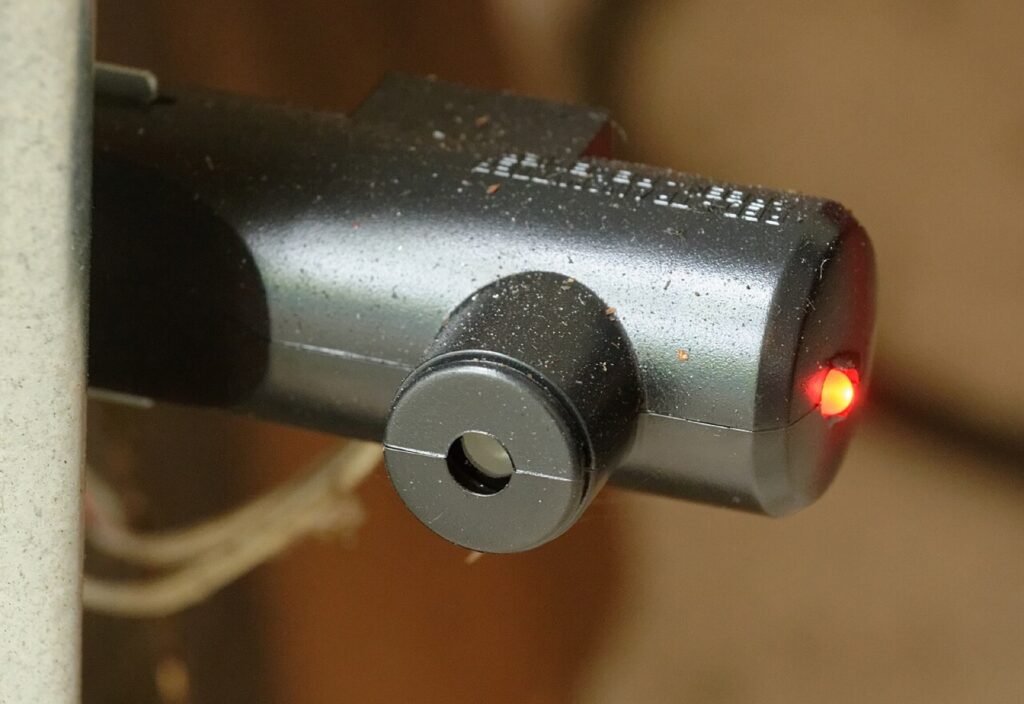
If the app shows the wrong position, stop sending commands until you can establish where the door really is. In a retrofit installation, inspect the position sensor’s attachment and orientation against its instructions and check its battery guidance. That small sensor is not the pair of photoelectric eyes near the floor. Cleaning a floor-level lens will not correct a detached door-position sensor, just as replacing a position-sensor battery will not reconnect a router.
If the app opens the door but closing fails, record the exact message and what happens locally. A pre-close warning followed by no movement is not the same observation as a door that starts down and reverses. The hub’s installation and position sensing may need checking; a local closing fault may instead belong to the opener or safety system. Our door-not-closing guide follows that physical symptom without bypassing protection.
If one person’s app works and another person’s does not, the door has already supplied a useful clue. Compare the account, accepted invitation, selected device and allowed access period before touching the opener. Reinstalling hardware for a single-user permission problem is unlikely to be the most direct route. Conversely, if the door also fails from its wall control, stop assuming that the phone is the cause.
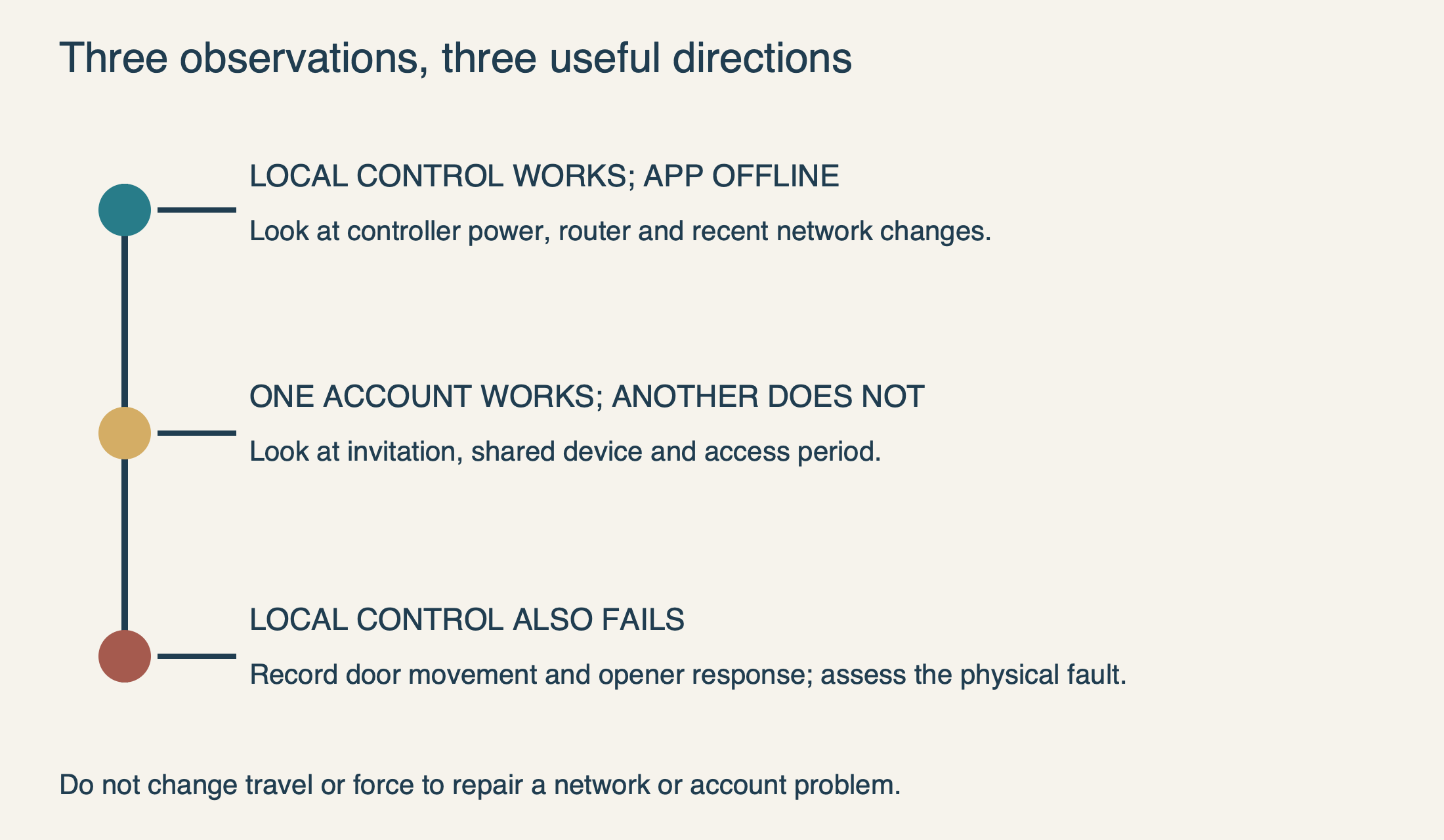 Select the diagram to view it at full size.
Share access deliberately, not by sharing a password
Use the current myQ Users instructions to review the access levels available for your account and equipment. Decide who needs management access and who only needs permission to enter. Check the current role descriptions and limits before sending invitations; different products and services can expose different options.
For a person who only needs to enter at agreed times, broader management access is unnecessary. Use the narrowest supported role that fits the arrangement, then verify the invitation on that person’s own phone. Quick Pass is a separate option for PIN-enabled equipment such as a compatible Video Keypad; it does not turn an ordinary opener without that hardware into a keypad.
Review access when a roommate moves out, a contractor finishes, or a phone changes hands. Keep account recovery information current, and make sure the person responsible for the property knows who owns the connected account. The practical goal is an access list you can explain and maintain—not simply the largest possible list of devices connected to one login.
Treat smart-home and vehicle integrations as separate purchases
For residential myQ, check phone use separately from Apple Home/Siri and approved vehicle integrations. Vehicle-partner access through CarPlay or Android Auto can require an eligible model, linked accounts and a current plan. myQ Community is a separate managed-property product. Use the platform guide for the current feature-specific requirements.
Before buying hardware for an integration, identify the exact feature you want: seeing status, issuing a command, providing guest access, or operating from a vehicle display. Then confirm that feature for the product, vehicle model, region and current plan. Older tutorials can describe arrangements that no longer exist. Avoid unsupported workarounds that require distributing your account credentials.
Before finishing, confirm that the physical door operates normally, the app identifies the correct door and its actual position, each invited person has the intended access, and another authorized entry method remains available. Save the model details and successful setup date privately. For account or partner-linking problems, use official myQ support; address a physical movement fault before relying on connected operation.
Sources & manuals
Model-specific details are identified above.