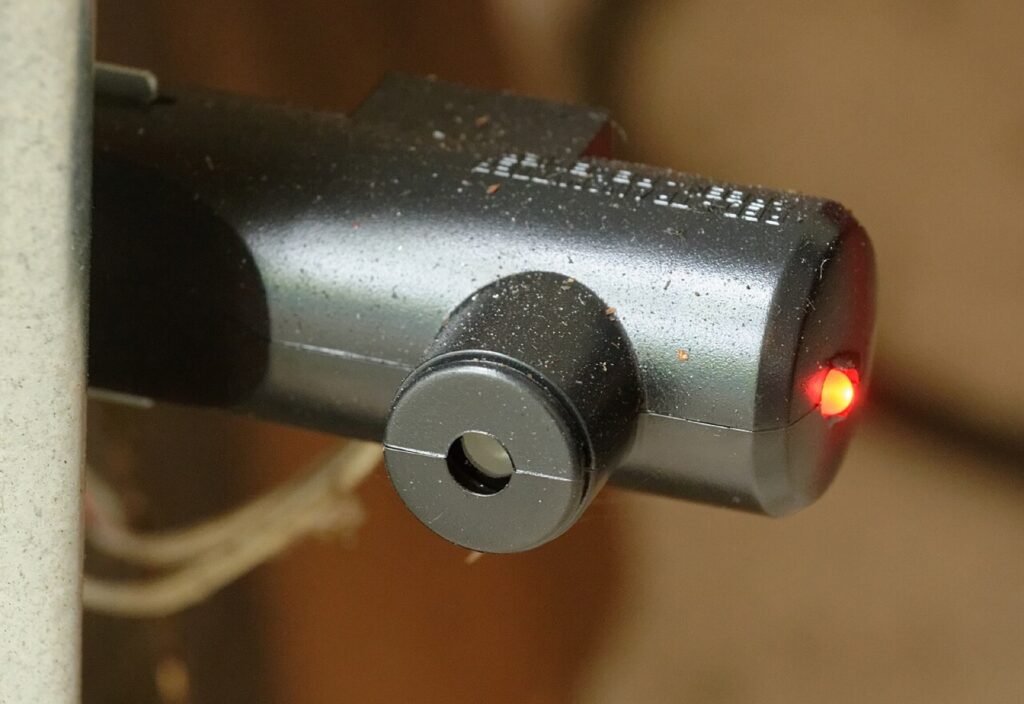
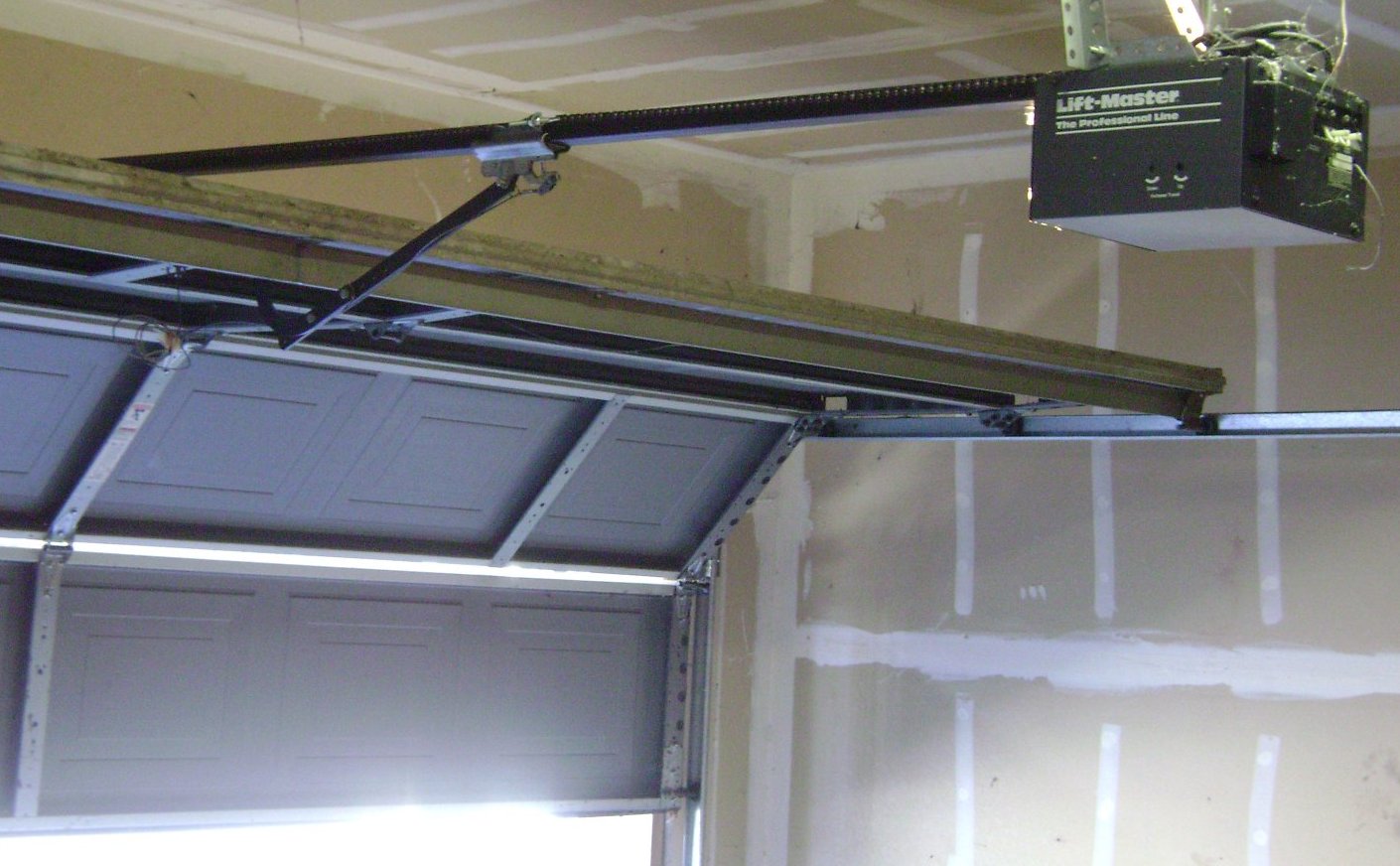
A conventional opener installation. The photograph identifies mechanical equipment; it does not certify myQ compatibility. Photo: Oleg Alexandrov, public domain.
Get the residential myQ app from Google Play, then connect the correct garage device. Android Auto needs a supported vehicle-partner route; it is not enabled by installing myQ alone. Android Device Control is documented for the separate myQ Community app. A missing widget, an offline opener, a camera problem and an absent car control need different checks.
 Chamberlain Group · official Google Play listing
Check device compatibility and optional services in the store.
Download the right myQ app for Android
Use myQ Garage & Access Control on Google Play. Confirm The Chamberlain Group LLC as publisher and package com.chamberlain.android.liftmaster.myq. Check the listing on the phone that will run it: device requirements and availability can change. An APK mirror is unnecessary for the official download.
For an apartment entrance managed through myQ Community, use the product named in the property manager’s invitation. Residential myQ and Community are separate applications. A free app download also does not include every camera recording plan or connected-car subscription.
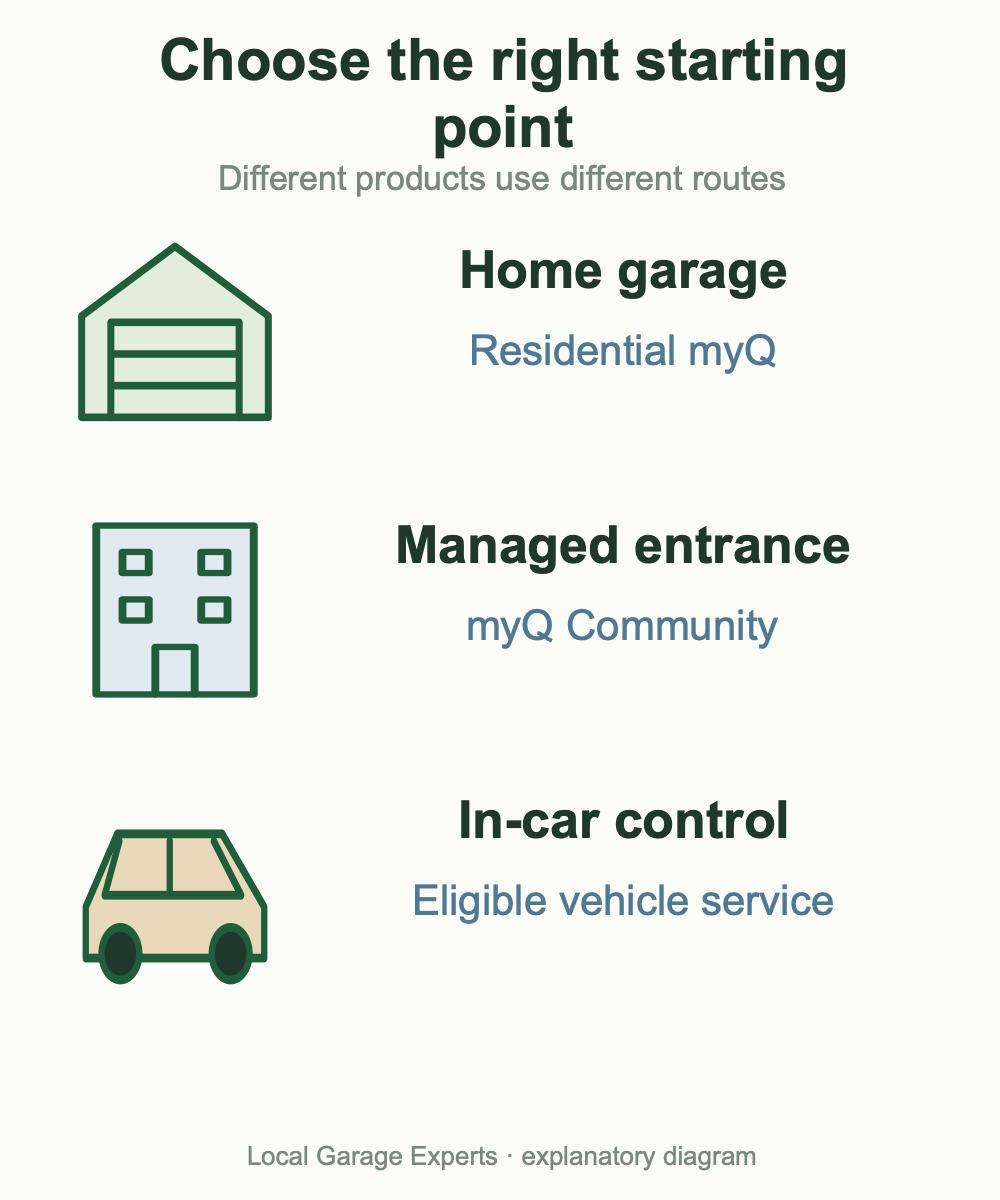
Diagram details
| Your goal | Correct starting point |
|---|---|
| Home garage | Residential myQ Garage & Access Control |
| Managed building entrance | myQ Community and a property invitation |
| Dashboard garage control | An eligible vehicle partner and its current service plan |
Set up the garage device before adding a car or widget
First establish whether you have a Wi-Fi opener, a separate Smart Garage Control or an independent camera. Their setup paths differ. Gather the accessible model number, home Wi-Fi details and intended owner account. Our myQ equipment and Wi-Fi setup guide covers the garage side without assuming every motor has built-in connectivity.
- Install the official app and sign in to the intended account.
- Choose the add-device route for the actual product. Follow its current prompts rather than instructions for a similar housing.
- For device discovery, allow the location access requested by the documented discovery process; Chamberlain explains that discovery can depend on location services. That permission is not proof that automatic arrival opening is enabled.
- Complete the device’s network setup, then check its displayed state against the physical door from a safe position.
- Only after normal phone control works, investigate vehicle linking, notifications or access for another person.
An account already owning a device is a different issue from Wi-Fi discovery. Do not erase a working setup simply because the app reports a previous owner. Confirm the handover with that owner, then follow our myQ ownership transfer and Error 310 guide for the device-specific next steps.
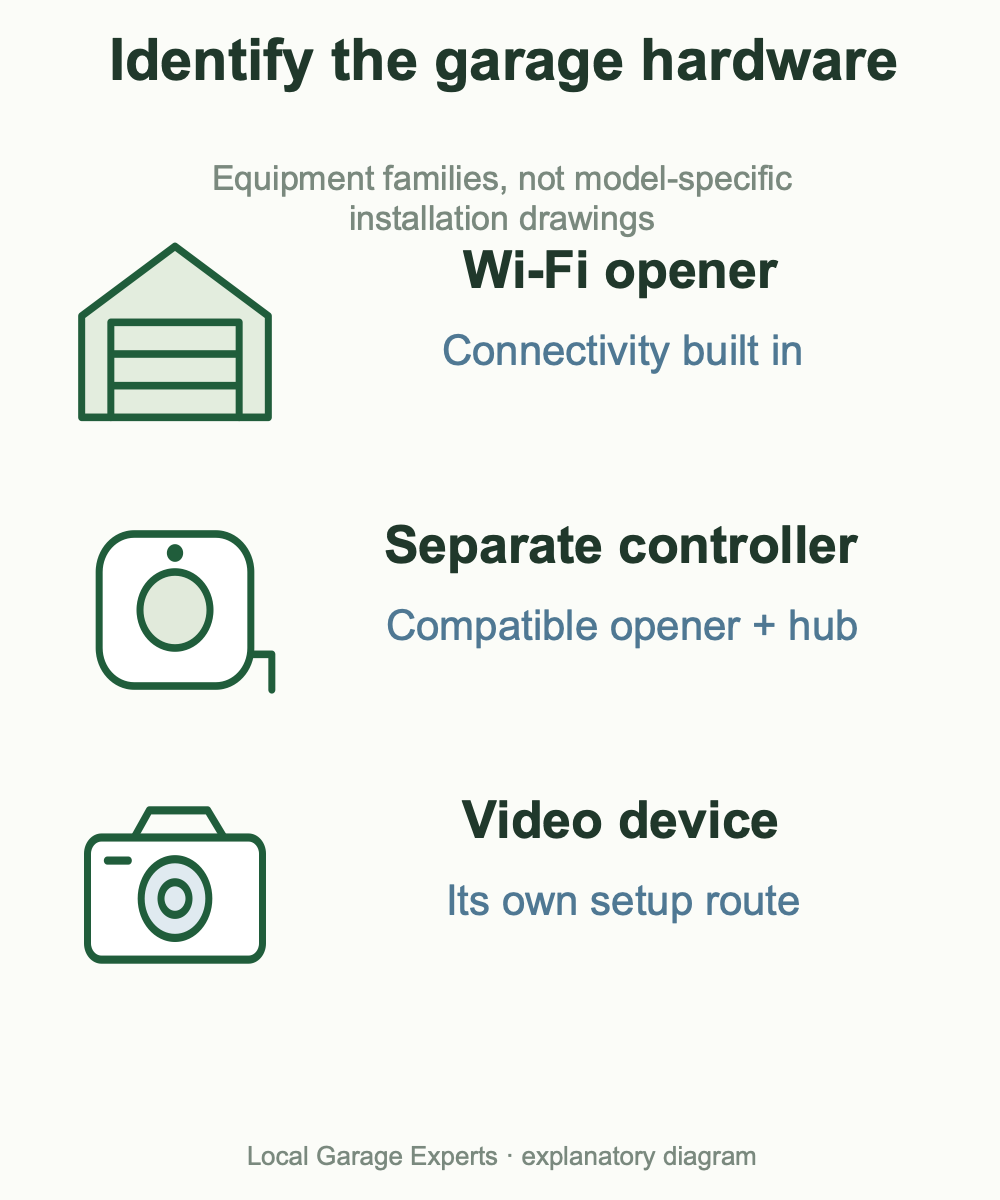
Diagram details
Connectivity is built into the identified opener model.
A Smart Garage Control or hub connects a compatible existing opener.
Video is configured as its own device, even when built into an opener.
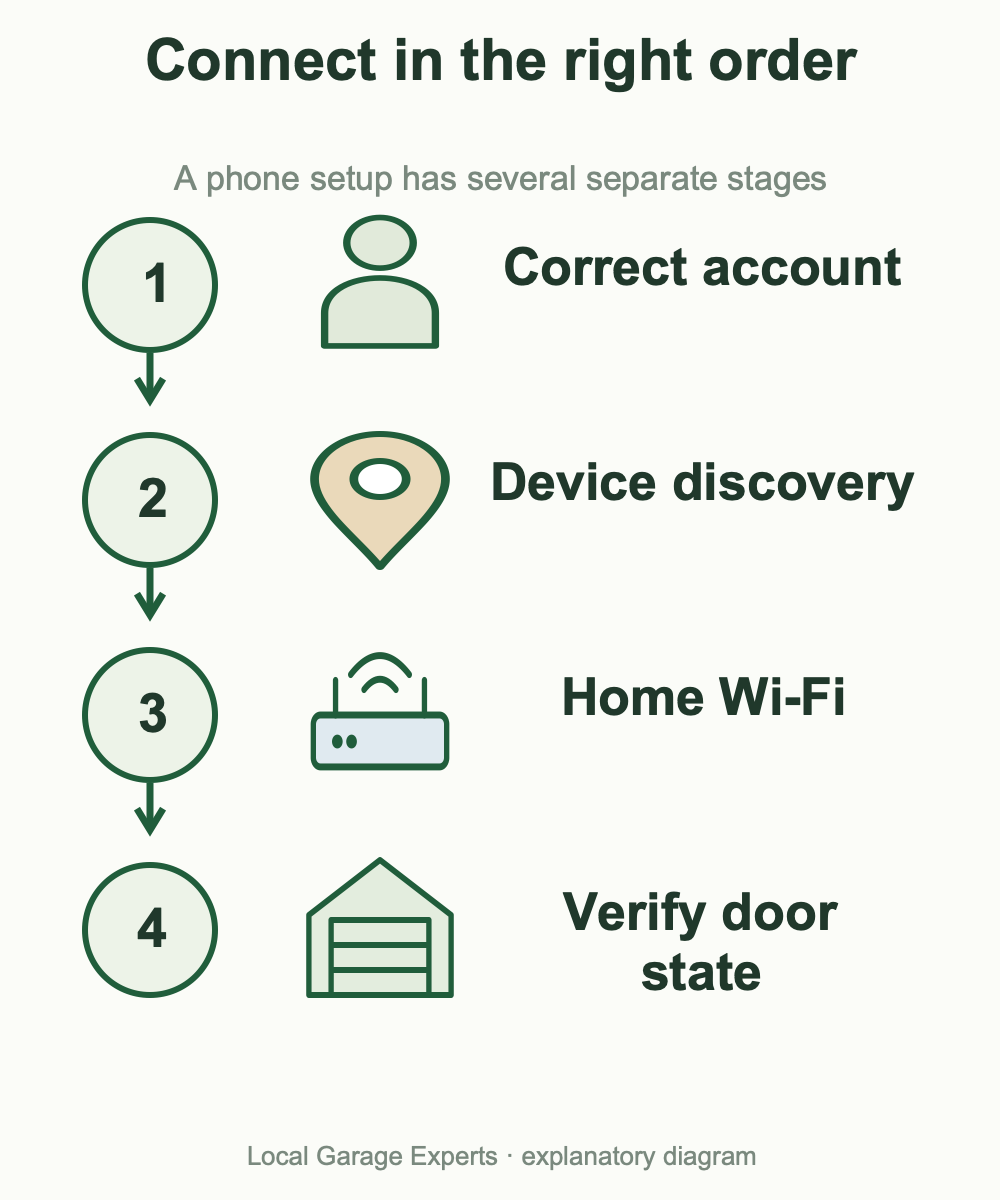
Diagram details
Owner setup and an invitation are different routes.
Choose the model-specific add-device process.
Use the permissions and network prompts for that setup.
Compare actual position with the app before adding car features.
How to use myQ with Android Auto
The useful question is which supported service puts garage access on your particular dashboard. A phone running Android Auto and a garage working in myQ are two prerequisites, not proof that an in-car control exists.
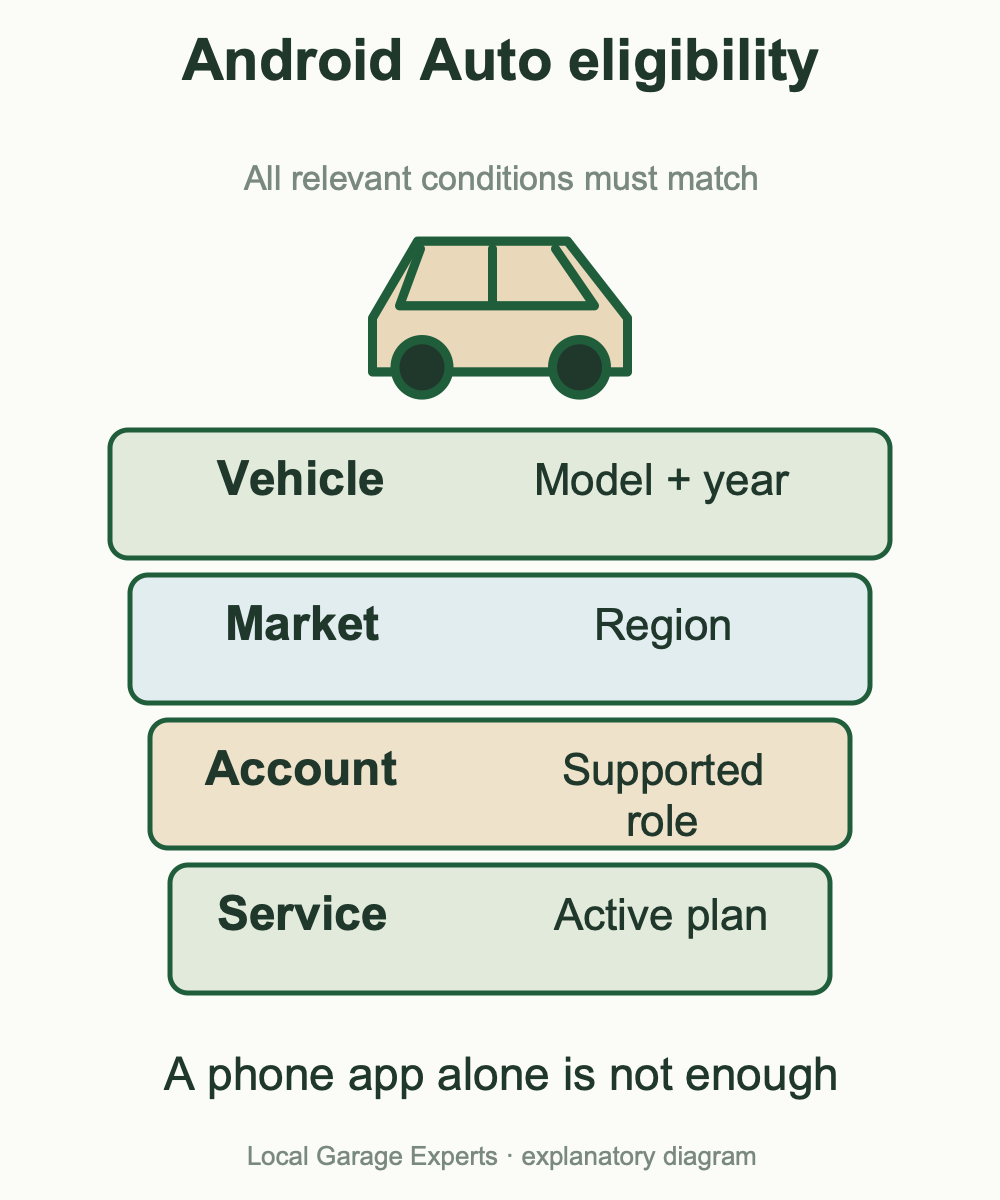
Diagram details
| Vehicle route | What to do | Important boundary |
|---|---|---|
| HondaLink / AcuraLink | Check the exact vehicle in the partner’s eligibility tool, install its app and link the working myQ account through that service. | The partner app and service are required; do not search only for a standalone myQ icon. |
| My Mitsubishi Connect | With the applicable packages active, open Settings, choose myQ Connected Garage, select Link to myQ and follow account authorization to choose the door. | Chamberlain documents select models, US availability and a wired Android connection. |
| Other connected-car systems | Start with the exact manufacturer entry in myQ’s vehicle directory. | An embedded vehicle app is not automatically an Android Auto integration. |
For Honda, the official FAQ directs current vehicle and plan checks to HondaLink MyGarage; it also distinguishes co-owner access from unsupported Friends and Family access for vehicle linking. For Acura, use AcuraLink’s own setup route. Complete account configuration while parked, with a clear view of the doorway for any operating check.
Mitsubishi’s broad model-year description includes select 2018-and-newer Eclipse Cross vehicles, select 2022-and-newer Outlanders and 2023-and-newer Outlander PHEVs. It still requires eligibility and active Remote Services and myQ packages. Do not buy a wireless adapter expecting it to replace that documented wired requirement.
If the car control does not appear
- Confirm the door still works in the residential phone app.
- Check the selected vehicle, country, partner login and active package.
- Verify the linking account has the role supported by that partner.
- Use the partner’s required phone connection and dashboard instructions.
- Record the exact missing screen or error before unlinking anything.
Alarm.com is not a universal alternative: its Android Auto guide excludes myQ devices and scenes containing them. A device visible elsewhere in an account may therefore be absent in the car.
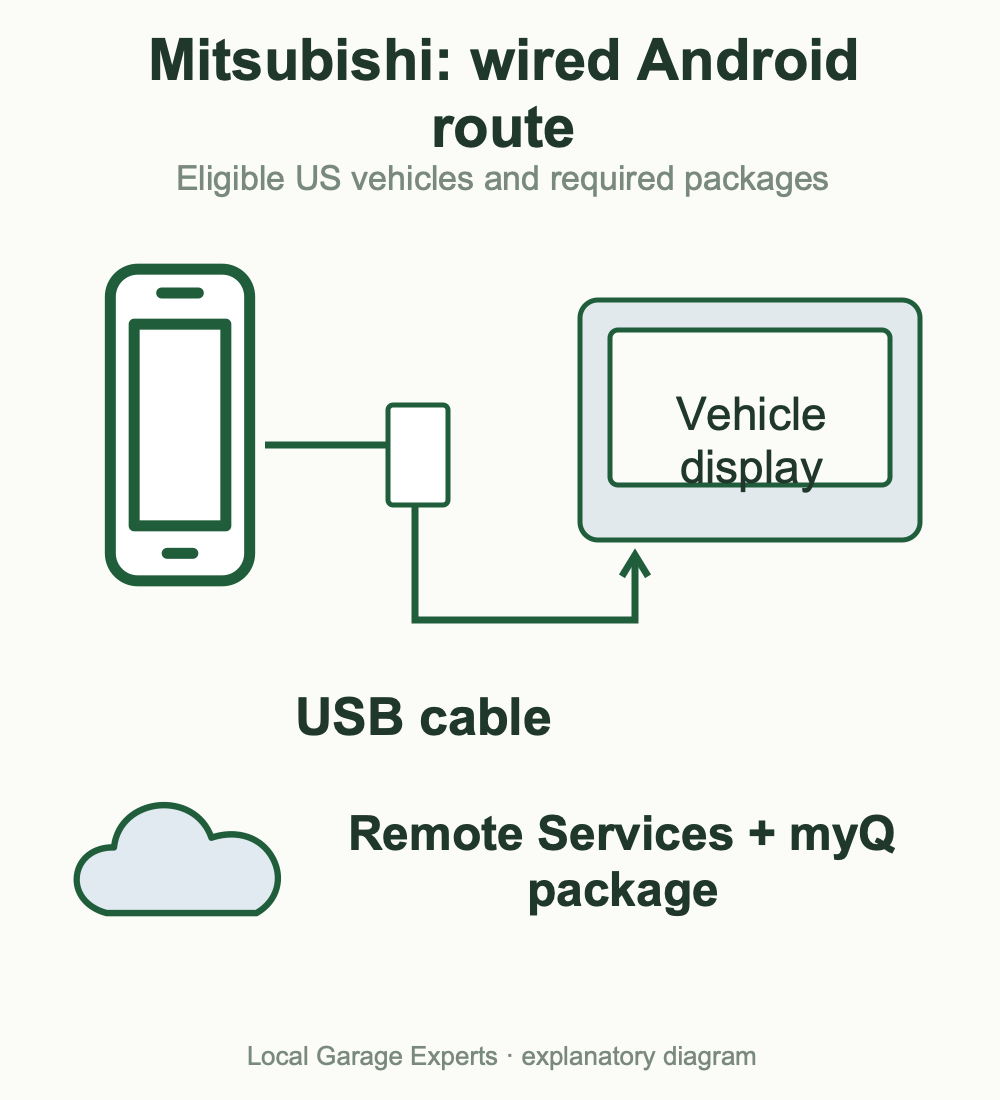
Diagram details
Confirm the required packages are active.
Choose Link to myQ.
Use the intended myQ account.
Use the documented Android connection in an eligible US vehicle.
What about Toyota and Android Auto?
The official myQ vehicle directory reviewed for this revision does not list Toyota. We did not establish a supported Toyota myQ Android Auto integration. Toyota’s support for Android Auto alone does not establish one.
Some Toyota vehicles have HomeLink, a separate built-in transmitter programmed for compatible garage equipment. Check the actual vehicle manual and opener compatibility. HomeLink is not the myQ app, does not create an Android Auto widget and should not be described as account linking. Use our HomeLink and LiftMaster compatibility guide for that separate route.
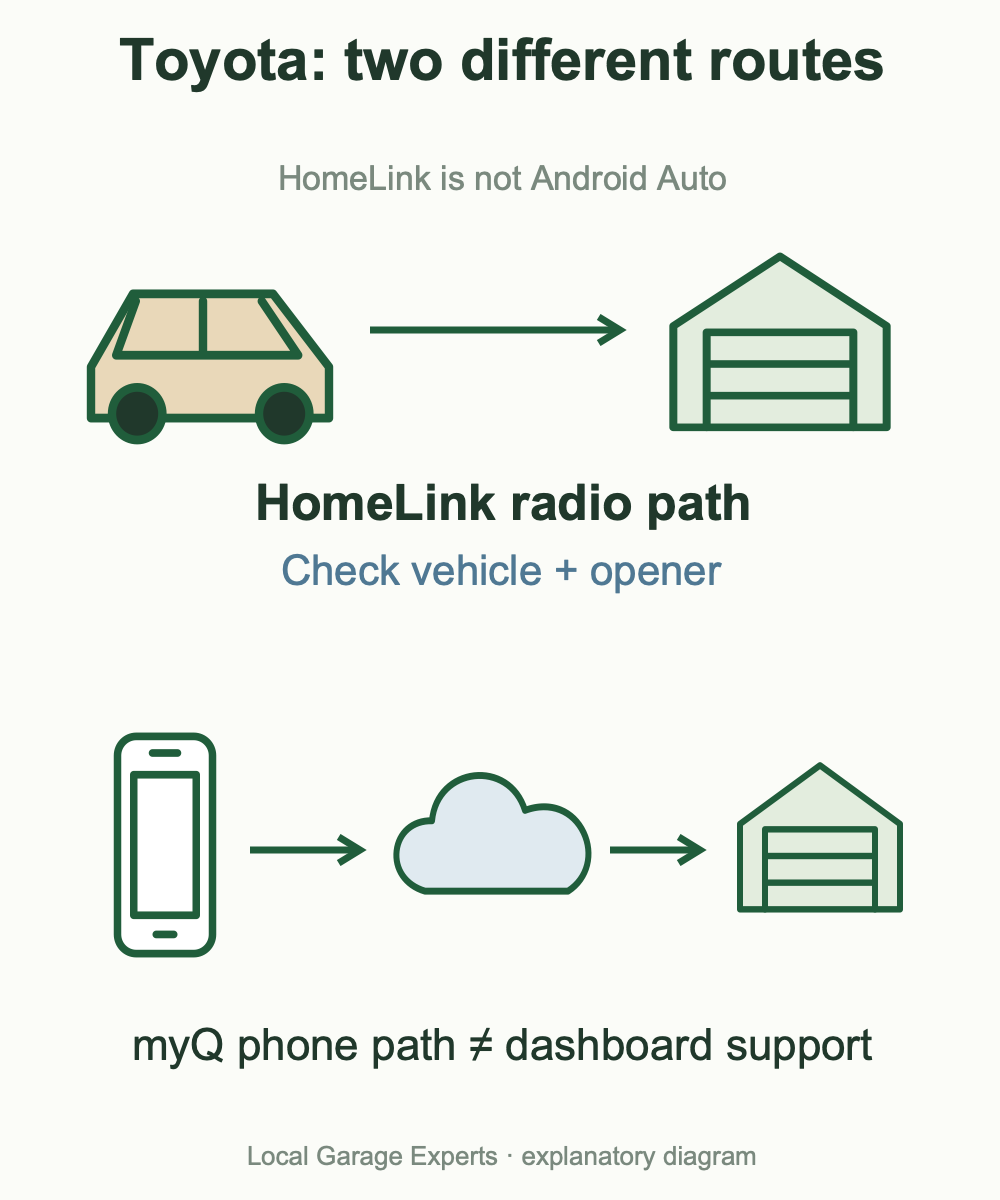
Diagram details
| Route | What it establishes |
|---|---|
| Android Auto | The vehicle supports compatible phone projection; myQ access is not established. |
| HomeLink | A separate transmitter may operate compatible garage equipment. |
| myQ phone app | The authorized phone controls connected garage equipment; dashboard support remains separate. |
myQ widgets and Community Device Control
A home-screen app shortcut, a status widget and a device-control tile do different jobs. We did not verify a universal residential myQ Android home-screen widget in the official documentation checked. Do not install an unknown control app or share myQ credentials merely because it promises one.
There is a concrete documented route for myQ Community: Android Device Control. In Chamberlain’s Android 11-and-newer guide, open the phone’s Device Control area; on Android 12 this is in Quick Settings. Choose Add Controls from the menu, select See other apps, choose Community, select eligible devices and save. Manufacturers and newer Android versions can arrange those controls differently.
If Community is absent, first check that you installed the correct app and have eligible property devices assigned. If an entry reads Inactive or Not Found, open Community and check device/account availability. This feature should not be relabeled a residential myQ widget.
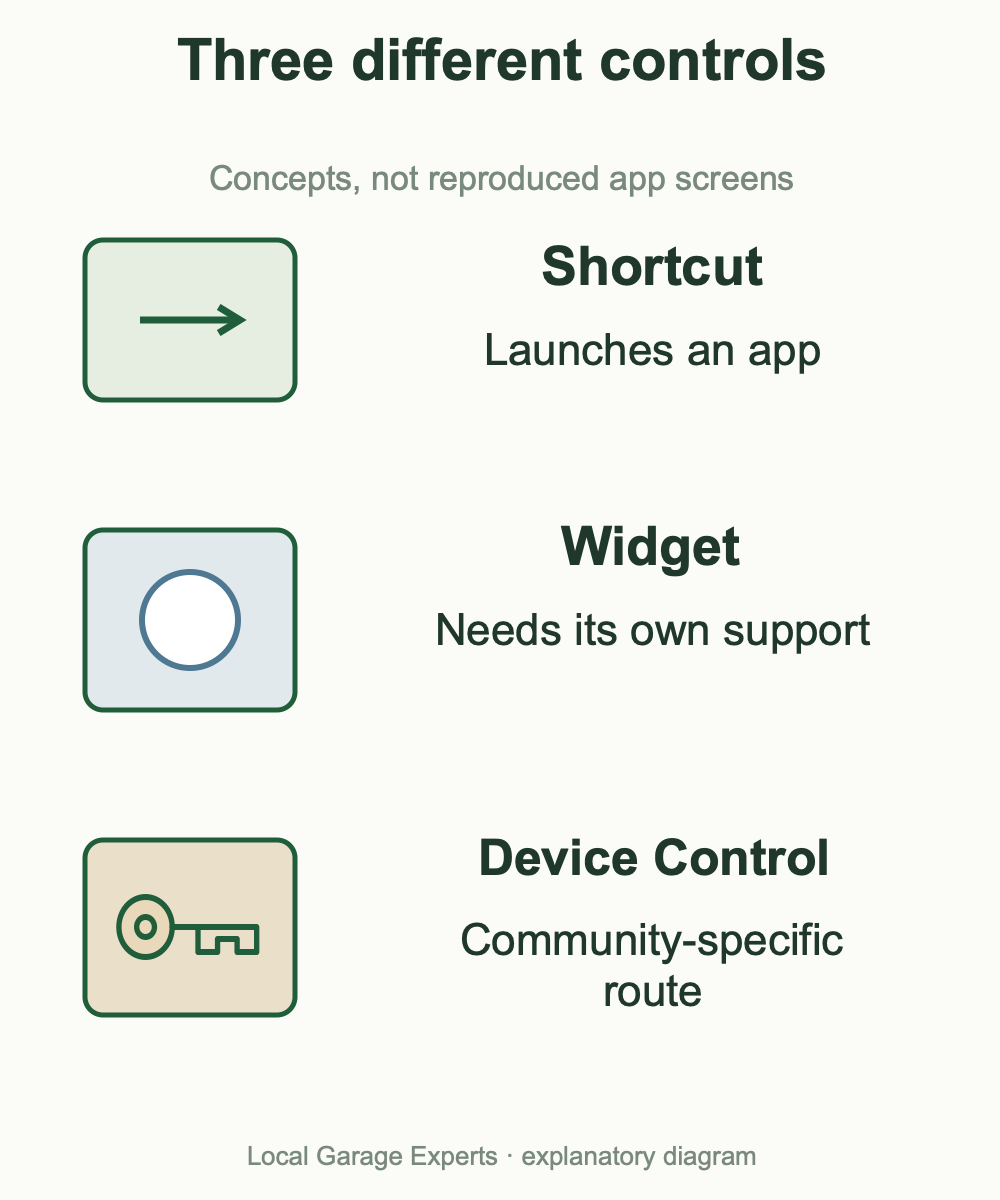
Diagram details
| Control type | What to verify |
|---|---|
| App shortcut | Launches an app; does not prove one-tap door operation. |
| Home-screen widget | A distinct supported status/control feature must exist. |
| Community Device Control | Documented Android quick-access route for eligible Community devices. |
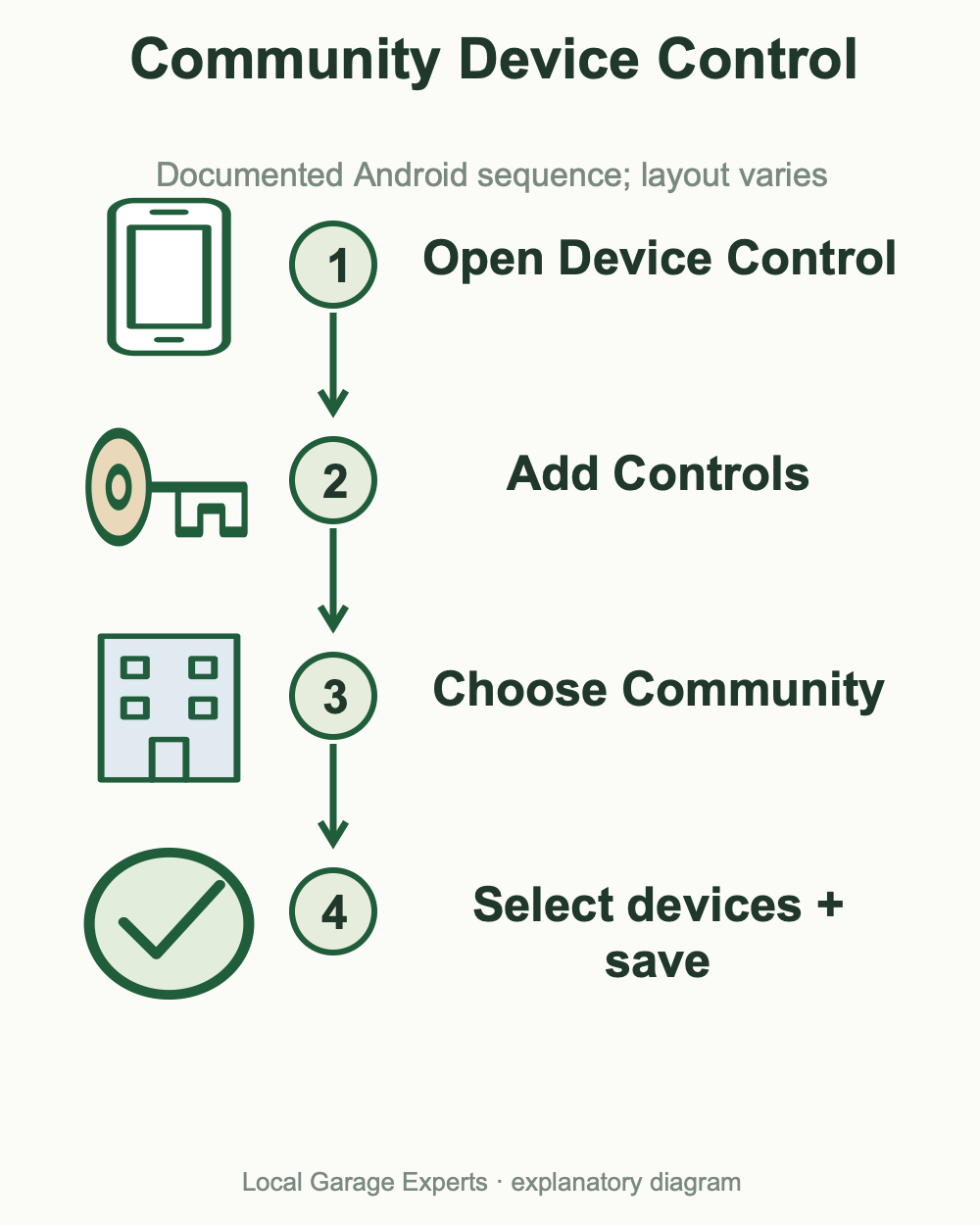
Diagram details
The location depends on Android version and manufacturer.
Select Community.
Only devices available to your account can be added.
Inactive or Not Found requires a device/account check.
Android watches and geofencing: two more separate checks
We did not establish an official residential myQ Wear OS app or watch-control route in the sources reviewed. A watch displaying an Android notification is not evidence it can send a garage command. Apple Watch instructions belong to a different platform; use our iPhone, Apple Watch and CarPlay guide for that case.
Likewise, enabling Android location access during setup does not activate universal myQ auto-open. Geofencing belongs to the particular connected-car service. For example, Hyundai documents a linked vehicle, active Bluelink and myQ subscriptions, a saved garage location and separate Auto-Open/Auto-Close controls. Those instructions describe Hyundai’s route, not a generic Android Auto setting or a Toyota feature. Honda has its own geofence notification guidance.
Before relying on an arrival feature, check whether it sends a prompt or actually operates the door, which device supplies location and whether the plan supports it. Configure while parked; never run a moving-vehicle experiment through an occupied doorway.
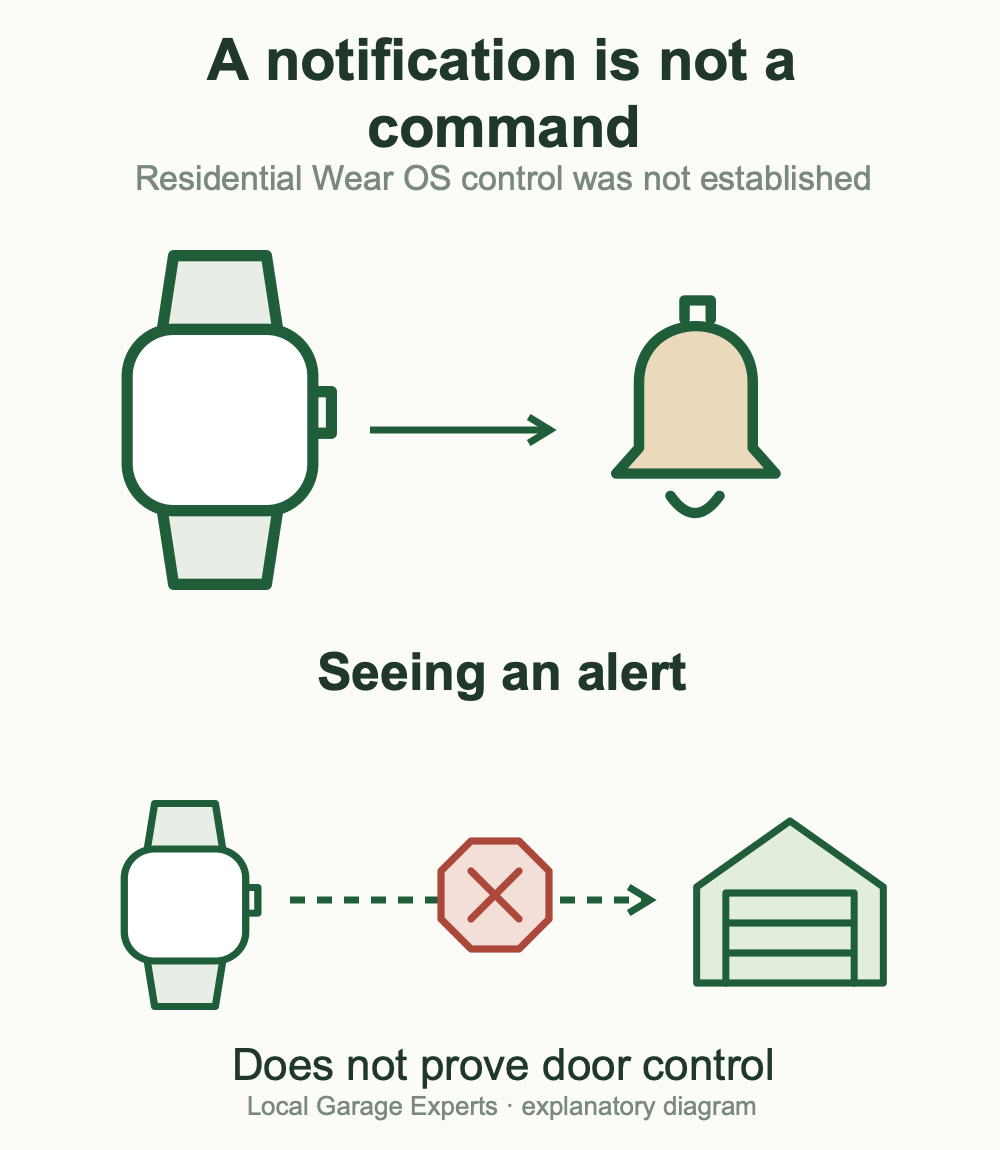
Diagram details
| Feature | Finding |
|---|---|
| Android watch notifications | Seeing a notification does not establish a door command. |
| Residential Wear OS control | No supported route established in the official sources checked. |
| Apple Watch | Separate officially documented sync route; not an Android procedure. |
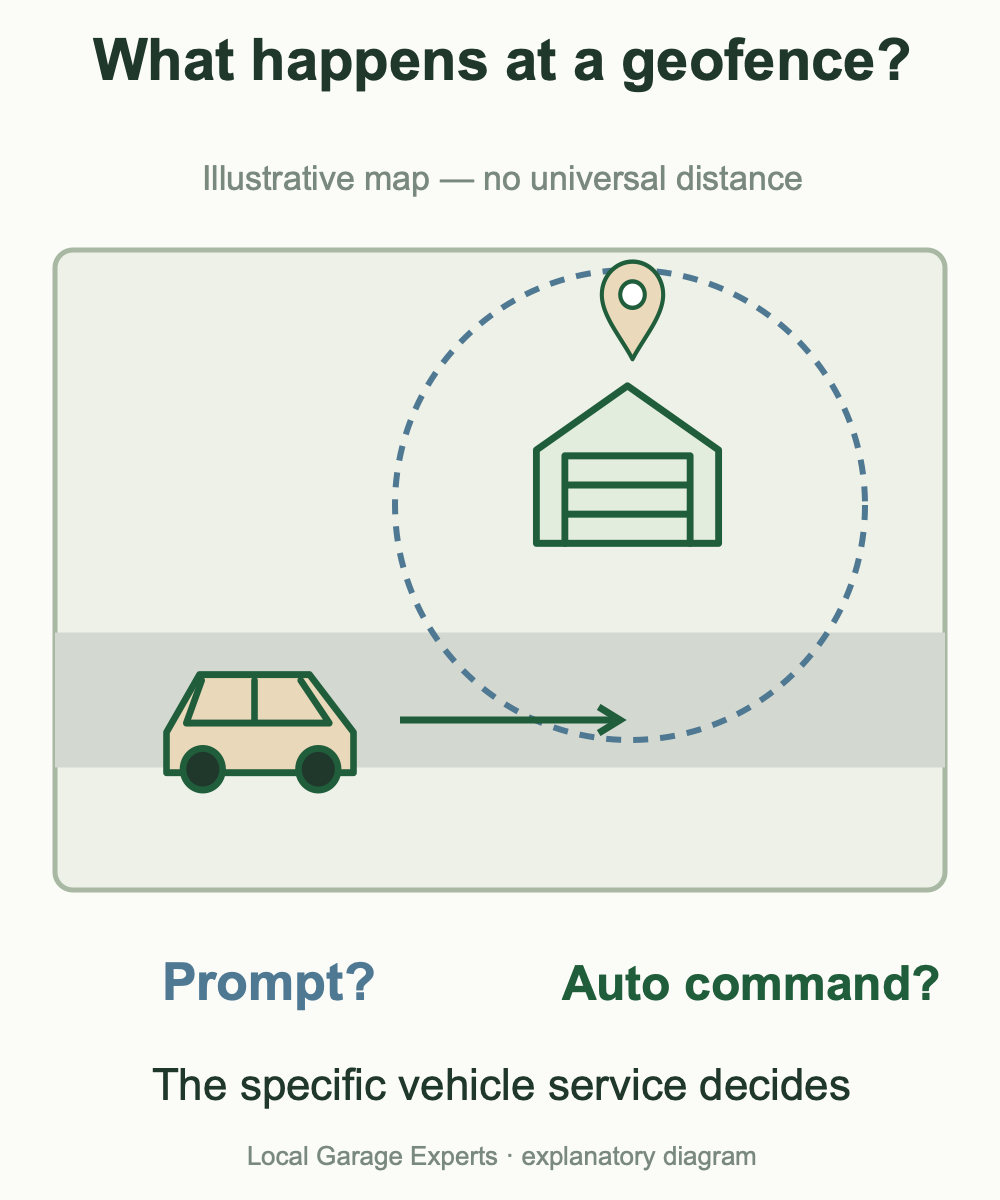
Diagram details
Which phone or vehicle supplies the location?
A reminder prompt or an automatic command?
Exact vehicle, region, account and plan.
Set up parked; keep people and vehicles clear.
When the door works but the myQ camera does not
Treat a camera as its own device. Successful garage opening does not prove that video is online or that recorded history is included in your plan. Distinguish a missing camera tile, an offline camera, unavailable live video and missing recordings.
Chamberlain’s camera FAQ separates live streaming from motion recording and its recording settings. For a camera that went offline after a router change, use that camera’s Update Wi-Fi route. Do not factory-reset the opener to fix a video-only fault. Record whether the camera is integrated into the opener or is a standalone model before choosing a support procedure.
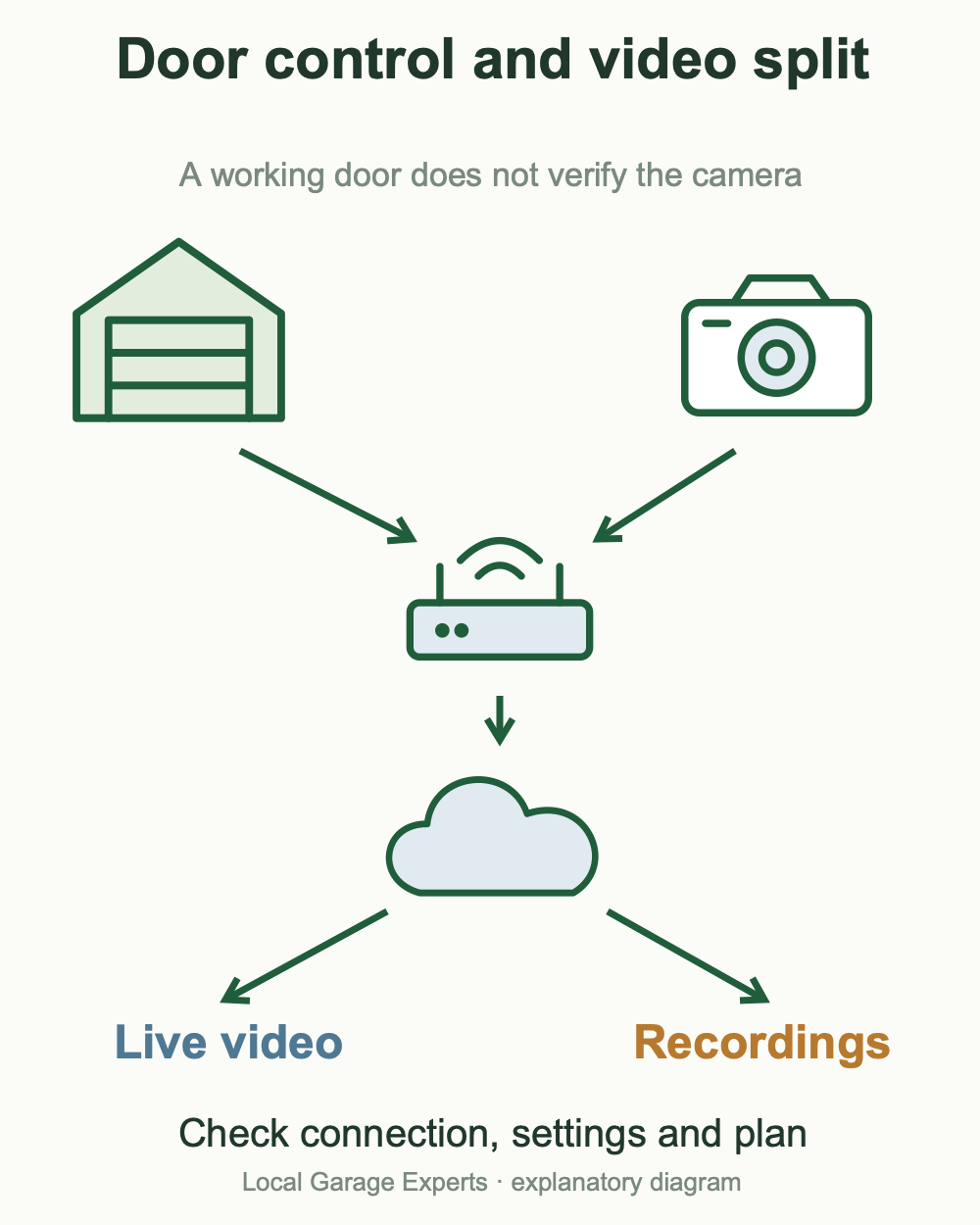
Diagram details
| What is missing? | Check this |
|---|---|
| Camera tile | Correct account, selected home and device assignment. |
| Live view | Camera power and its network connection. |
| Recordings | Recording settings and the applicable video plan. |
| Car dashboard video | Do not infer camera support from garage-door control. |
Android troubleshooting by symptom
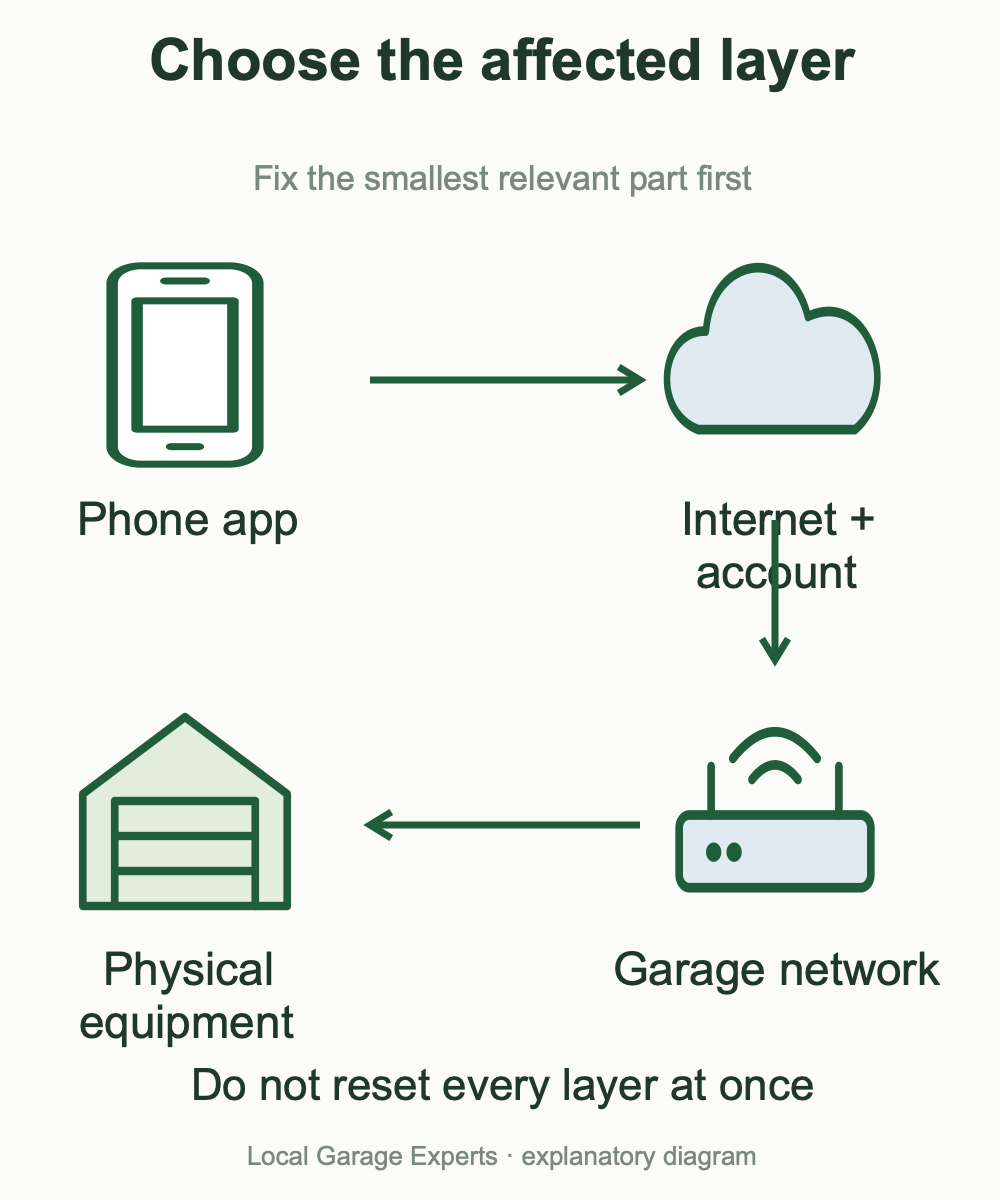
Diagram details
| Symptom | Next action |
|---|---|
| App will not load | Check ordinary internet access, close and reopen myQ, and compare Wi-Fi with mobile data. |
| App opens; opener says Offline | Investigate that controller’s power and home-network path, not just the phone app. |
| Notifications missing | Check the device alert settings inside myQ and Android’s notification permission separately. |
| Second home or shared door missing | Tap the home name at the top of myQ and select the intended home/account. Check the invitation and assigned devices. |
| Door moves crookedly or binds | Stop operating it. Phone settings cannot repair the door hardware. |
For several homes, name devices clearly and verify the selected home before sending a command. Invite another person to use their own account with the intended permissions rather than sharing a password. Switching homes does not transfer ownership.
Keep the Android version, app version, exact controller or camera model, failure message and last change in a private support record. Change one relevant item at a time. Reinstallation is a later software step; it should not be confused with erasing the garage equipment. If the door opens but will not close, use the garage door not closing checklist to distinguish visible sensor or obstruction symptoms from app trouble. Keep clear of the doorway and do not bypass a safety device.
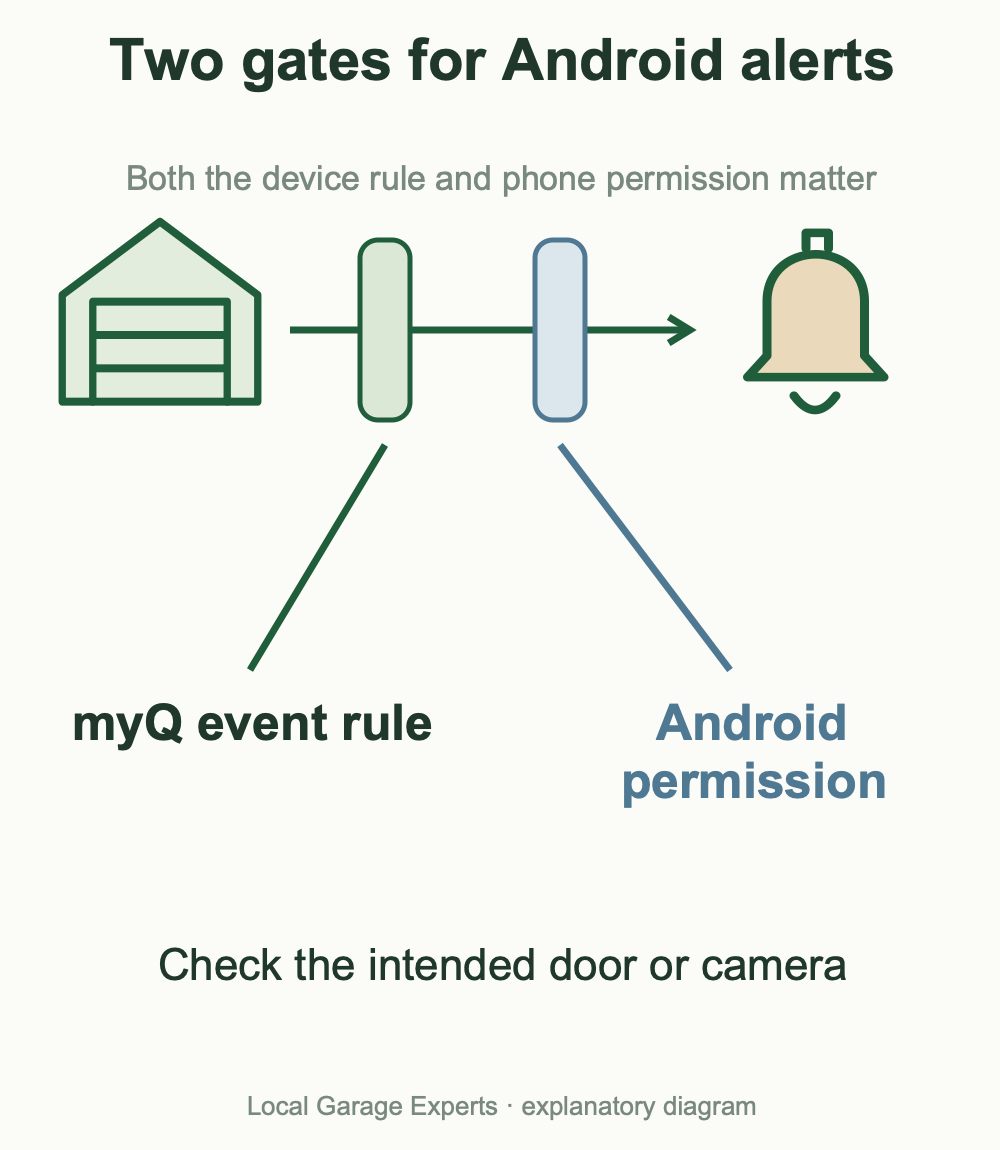
Diagram details
Correct device, enabled event/notification rule.
Notification permission and relevant background restrictions.
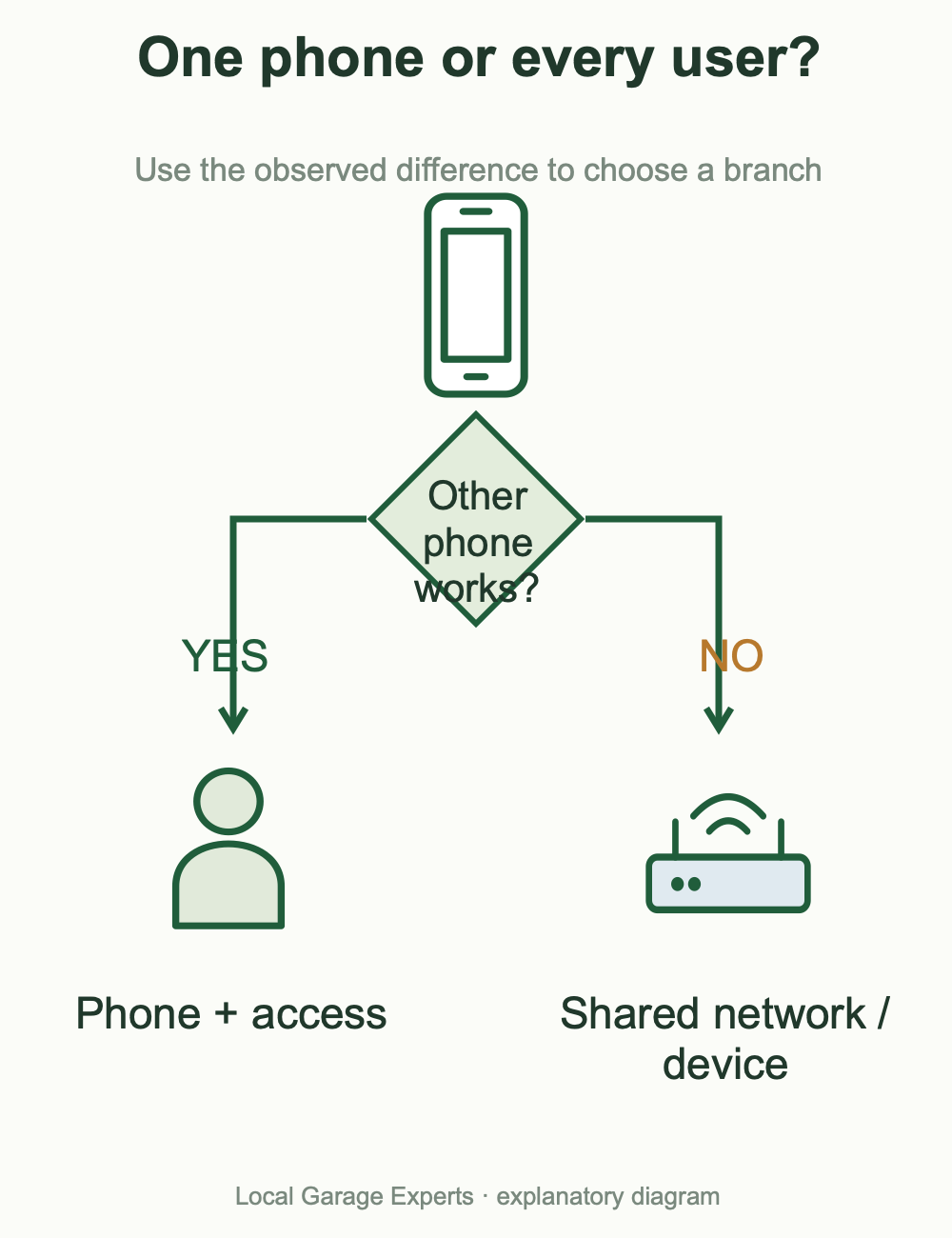
Diagram details
No → verify phone internet and app loading.
Yes → inspect this user’s access and phone settings.
Inspect the controller’s power and home network.
Stop use and address the mechanical fault first.
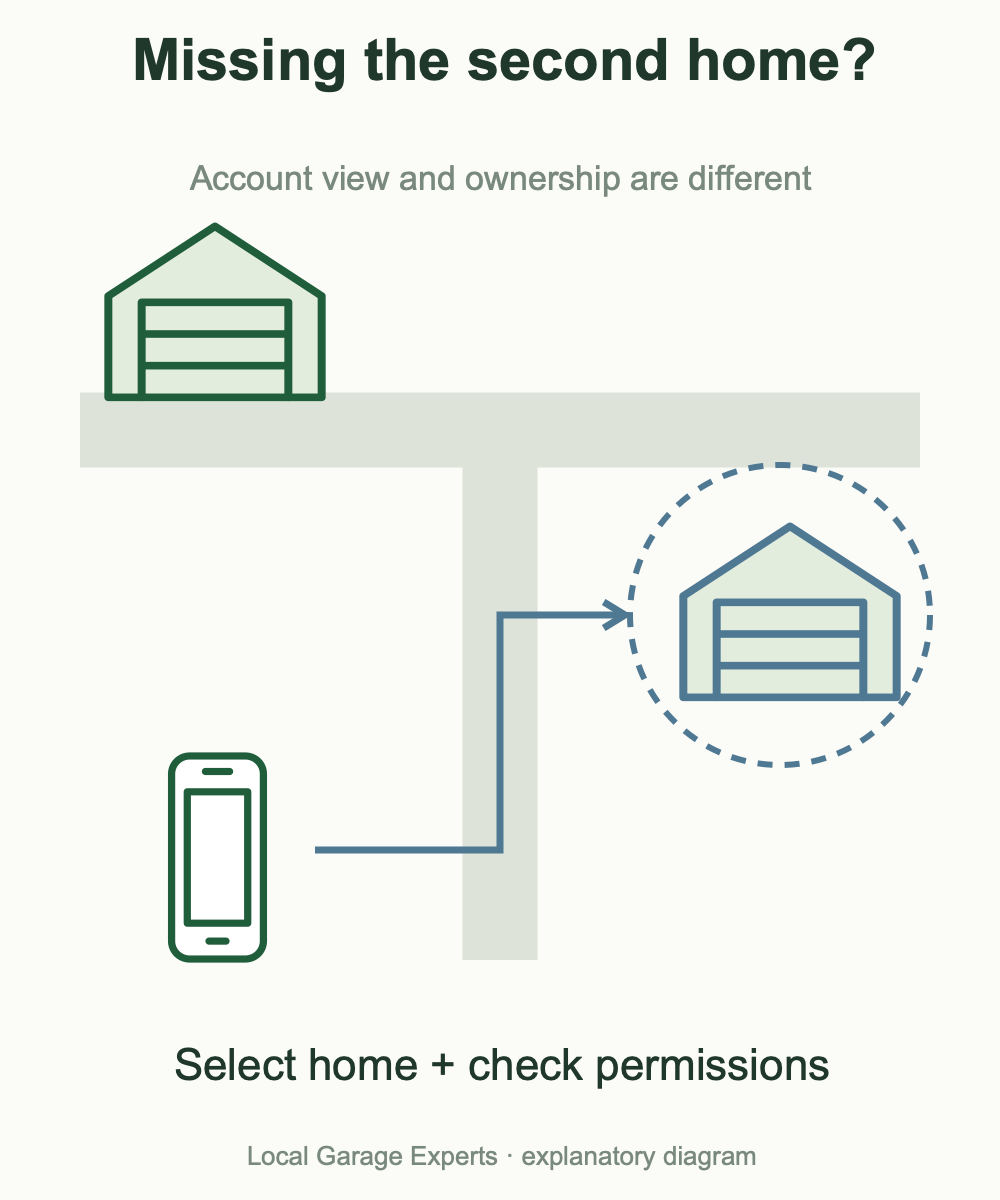
Diagram details
| What you see | Check before adding it again |
|---|---|
| Only your own devices | Select the invited home/account from the home-name menu. |
| Invitation accepted but no door | Check the selected home and assigned device permissions. |
| Another owner message | Resolve ownership; do not confuse it with home switching. |
Sources & verification
- Supported partners and platforms
- Current myQ vehicle directory
- HondaLink compatibility and account requirements
- AcuraLink service and setup requirements
- Mitsubishi eligibility, linking and wired Android requirement
- Community Android Device Control instructions
- Invitations and switching homes/accounts
- App loading and connectivity troubleshooting
- Push and email notification checks
- Camera live viewing and recording FAQ
- Reconnect cameras after a router change
- Location services for device discovery
- Hyundai geofence requirements and controls
- Toyota HomeLink is a separate garage transmitter
- Alarm.com Android Auto: myQ exclusions
Official sources checked November 4, 2026, for US readers. Product availability, app layouts and service terms can change. Compatibility conclusions distinguish documented support from features not established by the sources.
Google Play is a trademark of Google LLC. App Store is a service mark of Apple Inc.