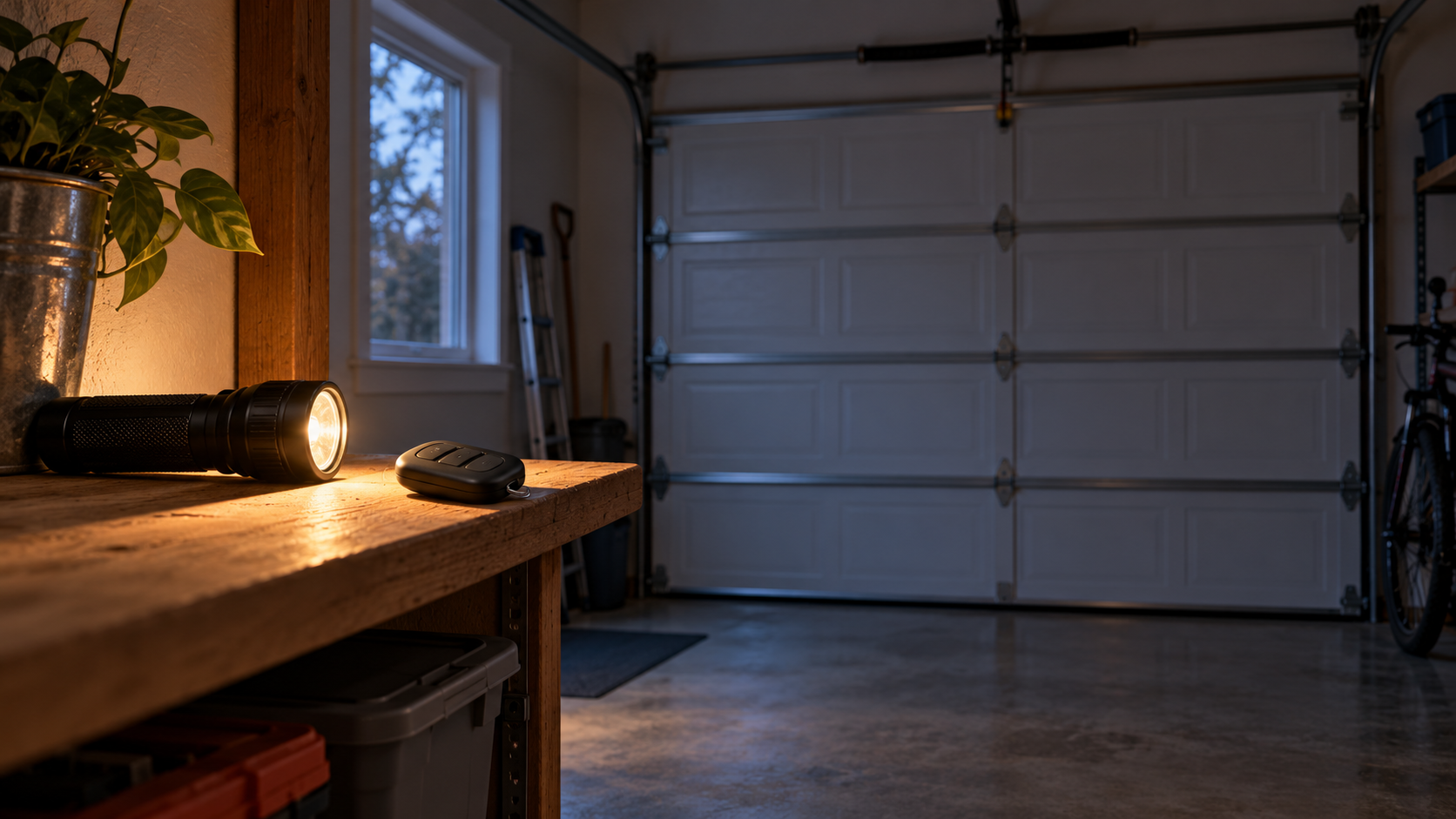
After an outage, distinguish restored supply, opener response and connected controls.
After an outage, distinguish the electrical supply, backup-battery state and app connection. Use the correct model indicators and avoid factory resets or emergency-release use as a first response.
The house lights are back on, but the garage door opener still behaves differently. Perhaps the wall control responds while the app says offline, an unfamiliar indicator is flashing, or the motor runs without moving a door that was used manually during the outage. These are different recovery situations—not automatic reasons to erase the opener’s settings.
Establish what has actually recovered
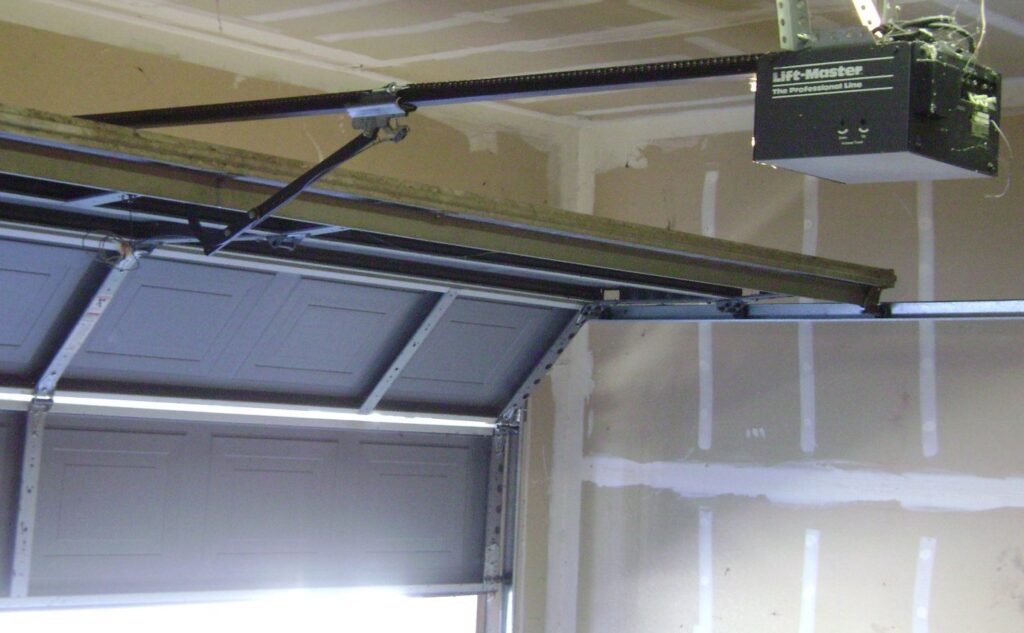
Chamberlain Group’s no-power guidance separates a completely unresponsive opener from equipment showing lights or other responses and emphasizes verifying the supply rather than assuming it. On a battery-equipped opener, an illuminated indicator also needs its backup-state context; it does not by itself prove that normal AC supply has returned.
Record what you can safely see without opening the housing or approaching damaged electrical equipment. If the outlet is inaccessible, wet, damaged or associated with a burning smell, do not climb to it or attempt electrical testing. A qualified electrician can address the supply concern; an opener technician can assess the operator when appropriate.
This article is about recovery after a known outage, not a full no-supply diagnostic procedure. If the unit remains entirely unresponsive, follow the separate no-power guide. Do not order a logic board solely because the failure appeared after an outage. The sequence is useful history, not proof of a failed component.
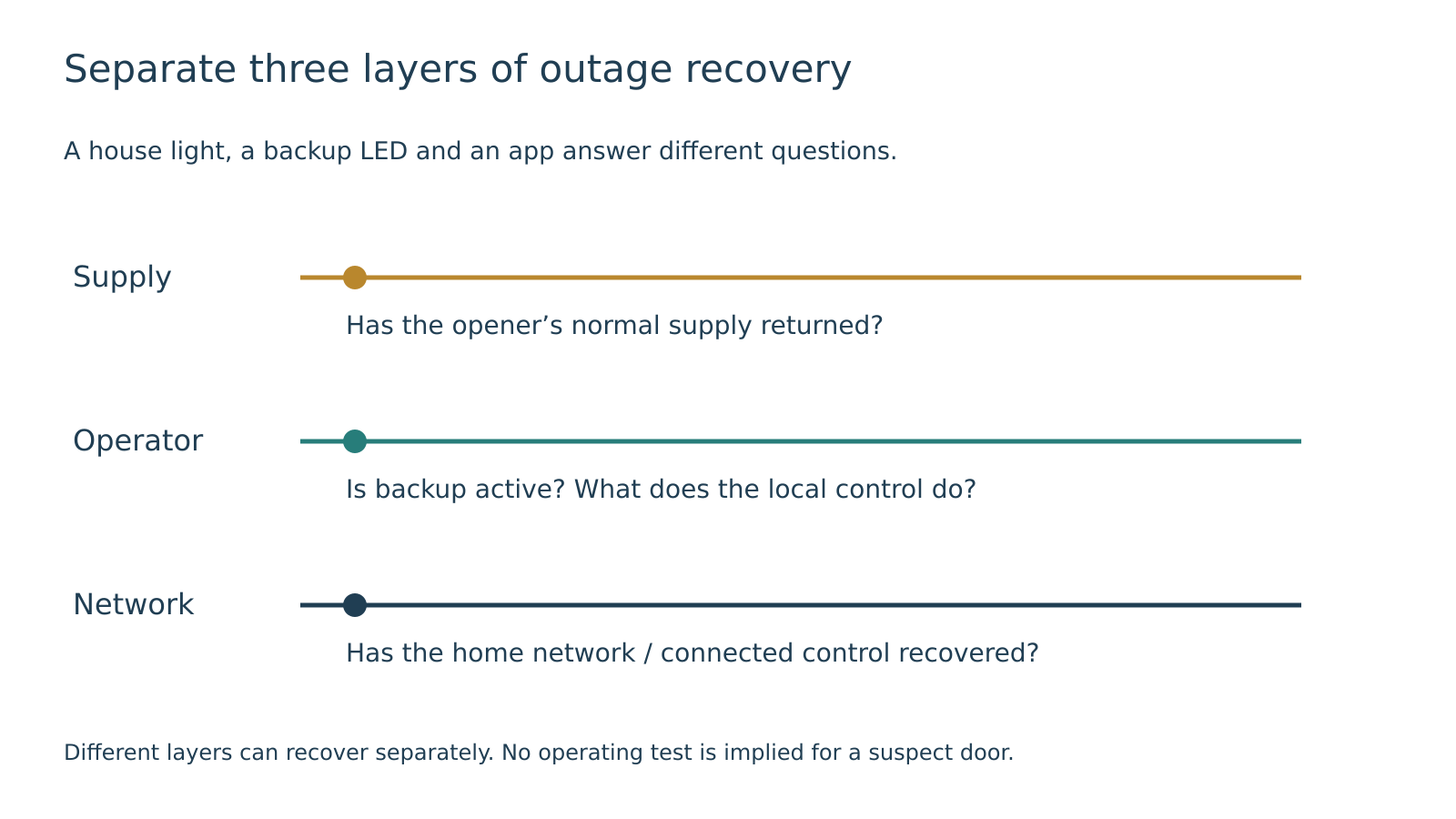 Select the diagram to view it at full size.
Compare local control with app control—only if the door is safe to operate
First use observations you already have. Did the ordinary wall control work after power returned? Did the remote work? Was the app the only control that failed? Note the difference instead of cycling the door repeatedly through every available device.
If the door is intact, unobstructed and behaving normally, a limited comparison using the usual local control with the opening in view can help distinguish an app-only issue from a broader operating problem. Keep people away from the moving door. Stop immediately if movement is abnormal; do not continue comparing controls after the mechanical condition becomes uncertain.
A working local control and an offline app point to different questions from a unit that responds to nothing. They do not prove that every safety function is healthy. Record the limited result accurately: “wall control operated normally; app unavailable,” not “all systems passed.”
The router and internet connection are also separate parts of the recovery picture. A phone using cellular data can access the internet without showing that the home network has recovered. Check that distinction before changing the opener’s Wi-Fi settings. Detailed reconnection belongs in the myQ setup and connection guide, not in a reflex factory reset.
Identify the indicator before interpreting its color
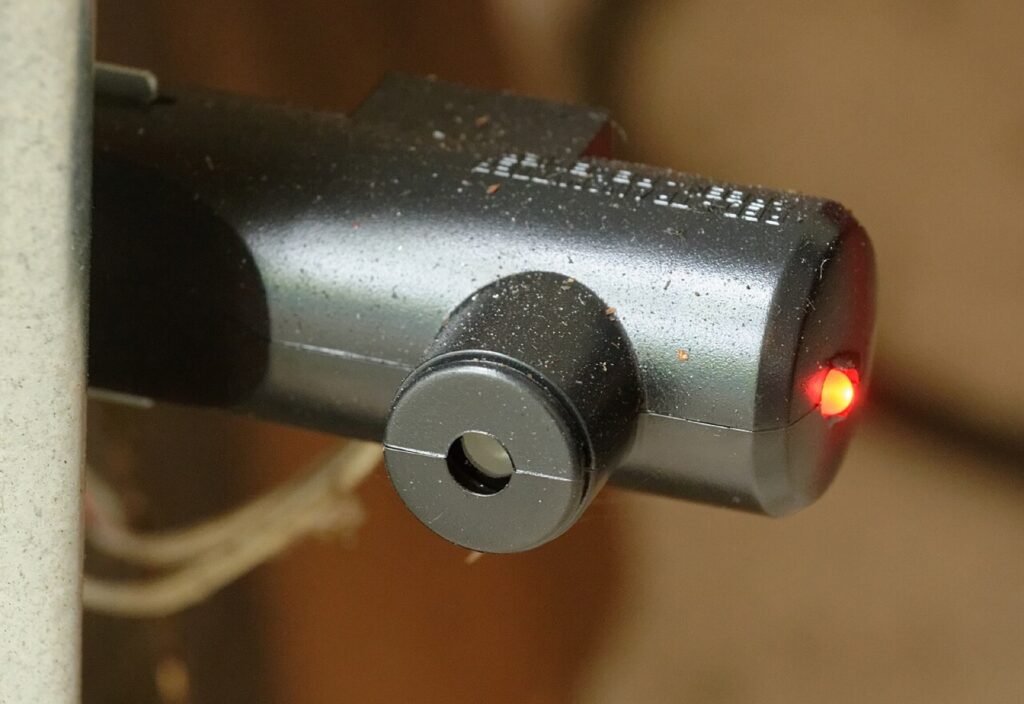
A battery-status LED and a Wi-Fi-status LED answer different questions. So do the main work light, safety-sensor indicators and diagnostic arrows. “A green light is flashing” is incomplete unless you can identify which light it is.
Use the exact model manual and its illustration to identify the indicator. Do not open a housing or reach into electrical components to investigate. If the relevant label or light cannot be viewed safely, leave that identification to the service provider. A safely taken photograph with surrounding context is more useful than a close crop of an anonymous colored dot.
Chamberlain Group’s indicator guide explicitly separates battery and Wi-Fi status. The following example narrows the interpretation further to one documented LiftMaster model rather than treating colors as universal across every opener.
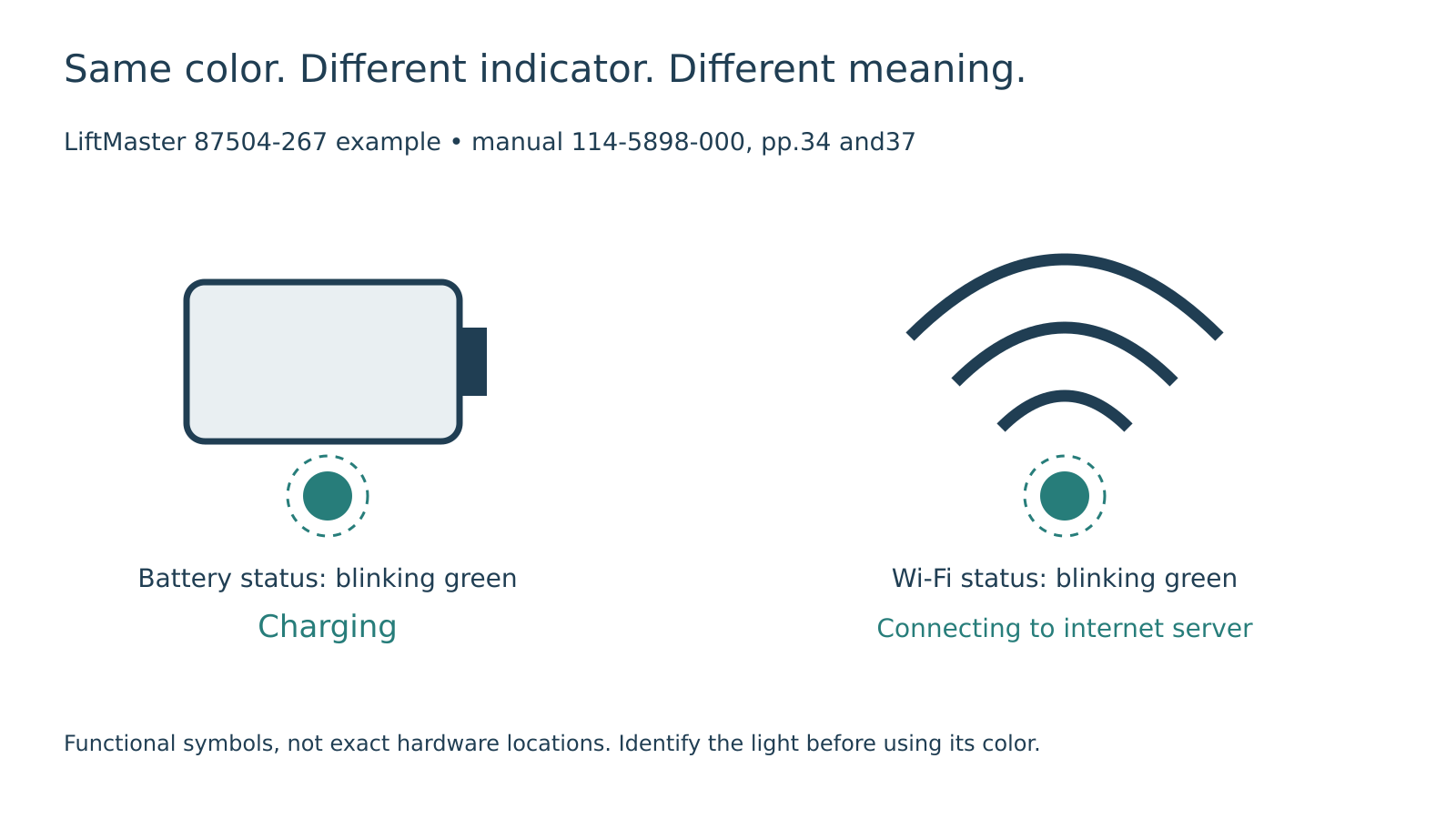 Select the diagram to view it at full size.
A documented example: LiftMaster 87504-267 backup status
In the LiftMaster manual 114-5898-000, the battery-status section on printed page 34 applies where battery backup is fitted. For the 87504-267 example, flashing green means charging and steady green means charged. Orange identifies backup operation; the manual specifies solid orange while the motor is running on battery. A red battery-status light with a beep indicates a battery that no longer holds its charge.
The manual’s Wi-Fi table on page 37 uses flashing green differently: the network connection is attempting to reach the internet server. The same color therefore cannot be interpreted without identifying the indicator. Match the indicator’s function and location to the exact hardware before interpreting it.
Page 37 also states that myQ app control does not work while this documented opener is on battery power. An app failure during backup operation is therefore not, by itself, evidence that its Wi-Fi credentials must be erased. Confirm the operating state before treating the situation as a setup failure.
Use this example only if the model and manual apply. Another brand, revision or indicator may use different meanings. If the observed behavior does not fit the documentation, preserve the observation and ask support; do not force it into the nearest color description.
If someone used the emergency release during the outage
Tell the technician or manufacturer support whether the door was manually disengaged, whether it was moved afterward and where it is now. A disconnected door and a failed motor are different situations, even if both leave the door stationary when a control is pressed.
Chamberlain Group’s manual-operation guidance distinguishes reconnection by opener type and warns against proceeding with damaged components or unusually heavy, unstable movement. That is why a generic instruction to “pull the red cord and run it again” is not appropriate for every post-outage problem.
This guide does not provide a forced-reconnection sequence. Identify the installed opener, consult its actual instructions and obtain professional help if the condition or connection is uncertain. Do not pull the release on a suspect open door, use the handle to drag the door, or run repeated cycles to make components catch.
Include any temporary action taken during the outage in the service report. A manual lock, an attempted release or a change made by another household member may be relevant. Do not operate against an uncertain lock state or alter hardware to make the door respond. Explain what changed and let the condition be established safely.
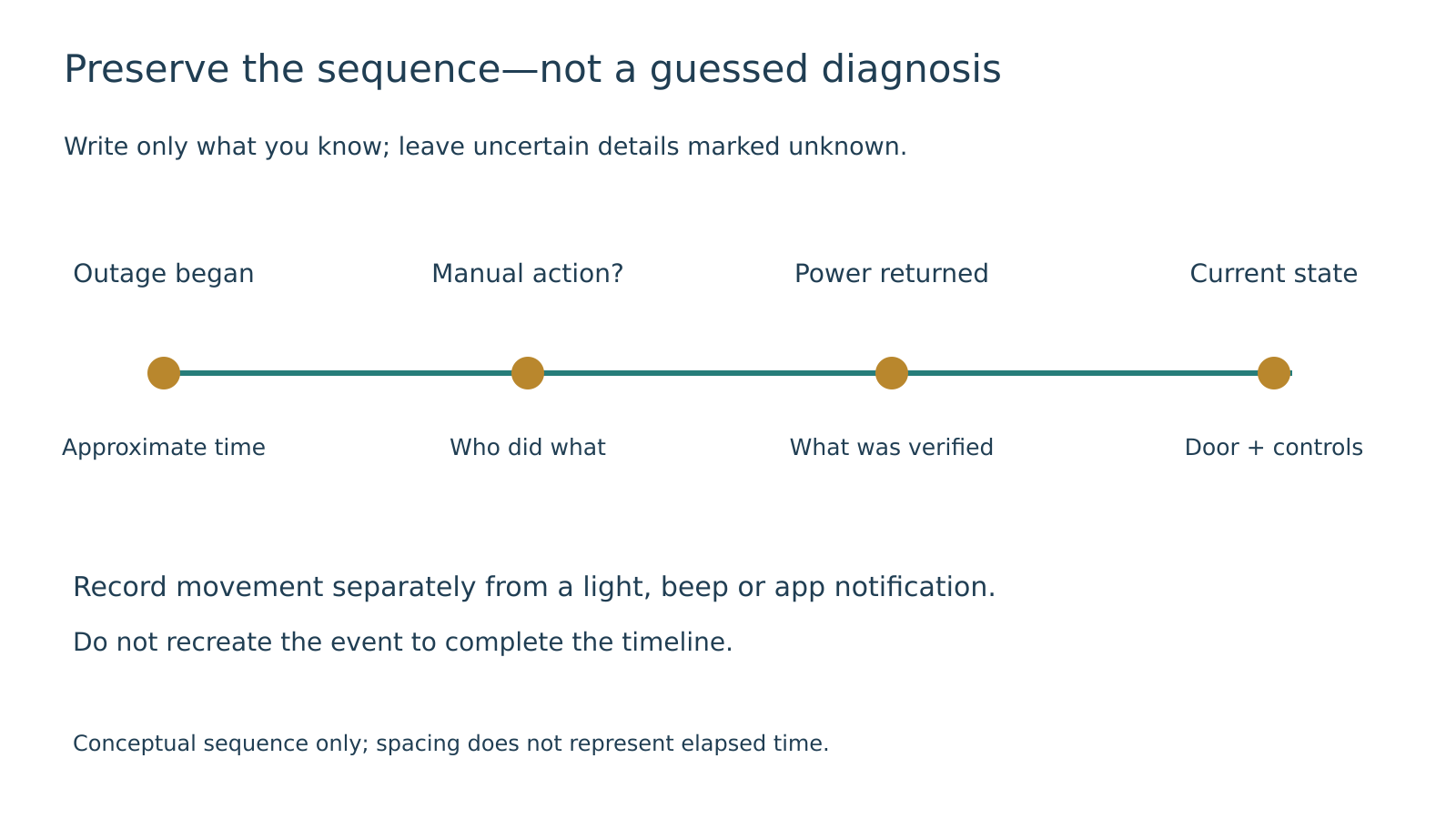 Select the diagram to view it at full size.
If the door opened unexpectedly after power returned
Record exactly what happened: actual door movement, a work light turning on, a sound from the opener, or an app notification. Those are not interchangeable. Do not describe a light event as an opening if you did not see the door move.
If there was uncommanded movement, keep people clear and stop sending further commands. Note the time power returned, the time of movement, who had access to controls and whether the door had been disengaged. Save available notifications without treating them as proof of the mechanical position.
Do not assume that opening after an outage is normal for every model, or that it proves hacking, a bad remote or a damaged circuit board. The separate unexpected-operation guide explains how to investigate uncommanded movement. The immediate task here is to preserve the sequence and avoid experimenting with an unpredictable door.
Close the recovery record without erasing useful evidence
Before contacting support, assemble a short report: opener model, whether backup is fitted, current door position, indicators identified by location and function, local-control versus app behavior, and any manual action during the outage. State what remains unknown. A precise report often starts the next conversation more effectively than a list of attempted resets.
If ordinary operation returns, keep the record rather than deleting it. If a warning indicator persists, have that specific condition addressed even when the door moves. A successful command does not explain every warning, and the end of the utility outage does not automatically close an unrelated mechanical or electrical concern.
For unresolved operator behavior, Local Garage Experts offers garage door opener assessment. Calls are answered at (323) 924-8777 daily from 6 a.m. to 11 p.m., with free estimates, free diagnostics and no service call fee. Describe the recovery pattern when calling. The goal is to identify the remaining problem—not to erase settings until something appears to work.